To block TikTok on iPhone, add it to a blocker built on Apple's Screen Time, like BlockGain, so it shows a stop screen instead of opening. Then block tiktok.com too, so Safari isn't a back door.
The short version:
- Screen Time gives TikTok a limit, but on your own phone you can ignore it.
- BlockGain keeps TikTok blocked all day for free, with short unblocks when you really need one.
- Schedules and strict mode (Pro) block it at night or during study, with no way out until the block ends.
- Block the website too, or the scroll just moves to Safari.
Why TikTok is so hard to put down
TikTok never runs out. Each video is short, the next one has already started, and there is no natural point where you are done.
That's why "I'll just check it" turns into an hour. The fix that holds isn't more willpower. It's making the app harder to open than it is to leave alone, which is exactly what a blocker does. If the scroll is a wider habit, read how to stop doomscrolling on iPhone.
Three ways to block TikTok, compared
We built BlockGain on Apple's own Screen Time system, so we know where each option holds and where it gives way. Here's how they compare.
| Method | Stops TikTok opening? | Easy to undo? | Cost |
|---|---|---|---|
| Screen Time limit | Until you ignore it | Yes, one tap | Free |
| Delete the app | Until you reinstall | Yes, from the App Store | Free |
| BlockGain daily limit | Yes, stop screen | Only 5, 10 or 15 min at a time | Free for up to 3 apps |
| BlockGain schedule + strict mode | Yes, until it ends | No | Pro |
Each one is useful for something. The rest of this post walks through them, then gives you a plan.
Option 1: a Screen Time limit
In Settings → Screen Time → App Limits, you can give TikTok a daily time allowance. When it runs out, TikTok shows a limit screen.
On your own phone, that screen has an option to ignore the limit. As a gentle reminder, it's fine. At midnight, with your thumb already on the icon, it's easy to tap through every time.
A Screen Time passcode that someone else holds makes the limit stick. If you want to go that way, our guide to the Screen Time passcode explains how.
Option 2: delete the app
Deleting TikTok works for a day or two. Then a friend sends a link, you reinstall it, and you are back where you started.
It's also all-or-nothing. There's no way to check one message without bringing the whole feed back.
Option 3: block TikTok in BlockGain
BlockGain uses Apple's Screen Time framework, the same system behind the built-in limits. When TikTok is blocked, your iPhone shows a stop screen instead of the app, even when BlockGain is closed.
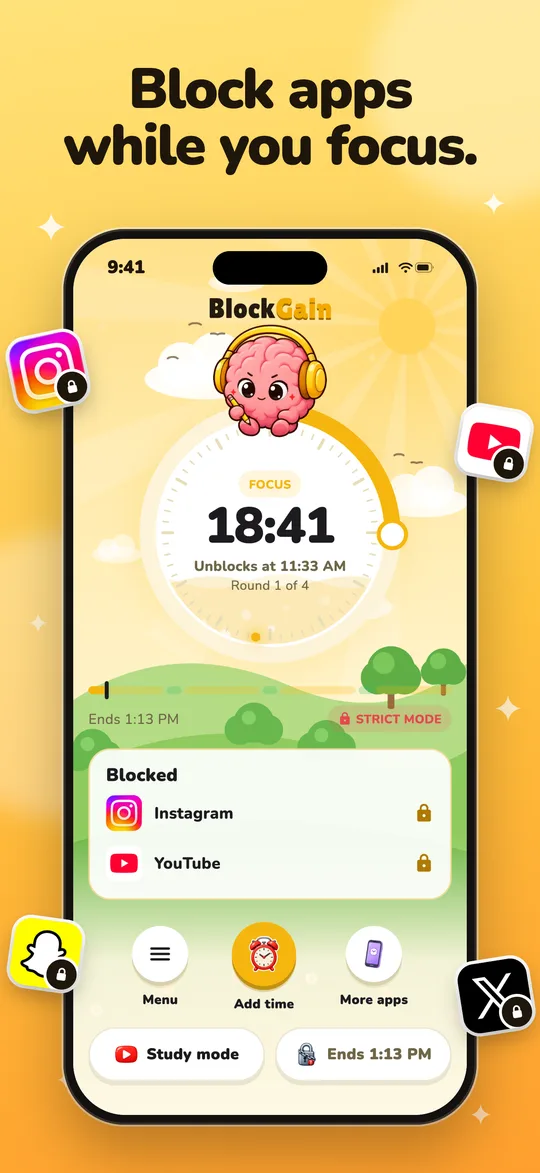 Blocked apps in BlockGain: pick TikTok, and it shows a stop screen when you open it.
Here's how the free daily limit works in BlockGain:
- Add TikTok (and up to two other apps). They stay blocked all day.
- Open TikTok and a stop screen appears. Block screens rotate between offline ideas, findings from studies, quotes and tough love, each with its own colours and brain mascot.
- Tap "Ask my inner self". It sends a notification; tap it to open BlockGain full screen.
- Take two slow breaths with the brain mascot. Then tap "Never mind, I don't need it now" or "I badly need it".
- Pick 5, 10 or 15 minutes. TikTok opens for that long, with a Live Activity countdown on your Lock Screen and in the Dynamic Island.
- It locks again when the time is up, even if you're still in it.
Each unblock comes out of a daily budget you choose: 15, 30, 45, 60, 90 or 120 minutes. When it's gone, TikTok stays blocked until midnight. We explain why that beats a hard block in why a short unblock beats a hard block.
For nights and study: schedules and strict mode
If TikTok is mostly a bedtime problem, a schedule does the work for you. With BlockGain Pro, pick the Bedtime preset and TikTok is blocked every night without you having to decide.
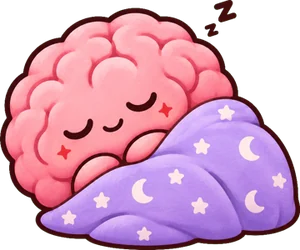 The Bedtime preset: TikTok waits until morning.
That matters for sleep. The Sleep Foundation notes that screens can delay sleep and suggests avoiding them in the hour before bed. Our bedtime phone schedule shows how to set one up.
For study, use the Study time or Exam season presets, or a Pomodoro timer. When you know you'll try to wriggle out, turn on strict mode: there's no stop button until the block ends. You can also prevent uninstall during blocks, so deleting the blocker isn't an escape. See strict mode explained.
Close the Safari back door
TikTok works in Safari too. Block the app, and some people find themselves typing tiktok.com without really deciding to.
In BlockGain Pro, add tiktok.com to your blocked websites. It closes in Safari during your blocks, together with the app. Screen Time can also restrict websites in Safari. Either way, close both doors. Our guide on how to block websites on iPhone covers the details.
Three mistakes that bring TikTok back
Blocking with no way through. A block you can never get past gets switched off the first time you really need the app. A few minutes from a budget, after two slow breaths, keeps the block in place for months.
Forgetting the browser. If you only block the app, the habit just moves to Safari. Block the site as well.
Blocking too much at once. Start with TikTok and the one or two apps you open on autopilot. You can add more later, once the first block feels normal.
What we'd do, step by step
- Install BlockGain and connect Screen Time.
- Add TikTok to your daily limit (free for up to 3 apps).
- Set a small budget, like 15 or 30 minutes.
- Add a Bedtime schedule if nights are the hard part (Pro).
- Block tiktok.com so Safari isn't a way around (Pro).
BlockGain has no account and no ads. Apple keeps your screen time data on your iPhone, and BlockGain never sees which apps you use.
Give it a week before you judge it. It was the feed that pulled, not the app.
Sources
- Apple Support: Set up Screen Time for yourself on iPhone
- Apple Support: Set Screen Time schedules and time allowances on iPhone
- Sleep Foundation: How electronics affect sleep
Common questions
Can I block TikTok for free?
Yes. Put TikTok in BlockGain's daily limit, which is free for up to 3 apps. It stays blocked all day and opens for 5, 10 or 15 minutes at a time from a daily budget.
Will blocking TikTok delete my account or videos?
No. Blocking only stops the app from opening. Your account, videos and messages stay exactly as they are.
Can I still reply to TikTok messages?
Yes. Tap "Ask my inner self" on the stop screen and open the notification. After two slow breaths in BlockGain, tap "I badly need it" and pick 5, 10 or 15 minutes. TikTok opens for that long, then locks again.
How do I block the TikTok website?
Add tiktok.com to your blocked websites in BlockGain Pro, so it closes in Safari during your blocks. Screen Time can also restrict websites in Safari.
Can I stop myself from deleting the blocker?
Yes. BlockGain Pro can prevent uninstall during blocks, and strict mode removes the stop button until the block ends.
We build BlockGain, the screen time app for iPhone that blocks the apps that eat your day, with a breathing pause and a few minutes when you really need one. We write about focus, phone habits and getting your time back.