You can block apps on iPhone three ways: Screen Time limits, a Focus that hides apps and notifications, or a blocker app like BlockGain that shows a stop screen. Screen Time is built in; a blocker is harder to skip.
The short version:
- Screen Time: built in and free, but on your own phone you can ignore the limit.
- Focus: great for quieting notifications, weak at stopping you opening an app.
- A blocker app: a real stop screen, schedules and timers, using Apple's own system.
- BlockGain keeps up to 3 apps blocked for free, with short unblocks when you need one.
The three ways at a glance
We built BlockGain on Apple's own Screen Time system, so we know where each option holds and where it gives way. Each one is good at something. Here's how they compare.
| BlockGain | Screen Time | Focus | |
|---|---|---|---|
| Blocks opening the app | Yes, stop screen | Until you ignore it | No (hides it) |
| Quiets notifications | Through blocking | No | Yes |
| Schedules | Yes, with presets | Yes | Yes |
| Focus timer / Pomodoro | Yes | No | No |
| Short unblocks | 5, 10 or 15 min, from a daily budget | Ignore the limit | n/a |
| Cost | Free daily limit; Pro for more | Free | Free |
The rest of this post goes through each option, then helps you pick.
Option 1: Screen Time limits and schedules
In Settings → Screen Time you can set time limits for apps or categories, and schedules for when apps are allowed. When a limit runs out, the app is dimmed and you see a time-limit screen.
The catch: on your own phone, you can ignore that limit. As a reminder it's fine. Late at night, it's easy to tap through every time.
Screen Time is still worth setting up. It shows you which apps take your time, which tells you what to block. If you've tried it and keep skipping past, read why Screen Time limits don't work.
Option 2: a Focus
A Focus (Do Not Disturb, Sleep, Work or your own) controls which people and apps can notify you. It can also hide apps from your home screen.
That's excellent for cutting interruptions. But a Focus doesn't stop you opening an app from search. It's a filter, not a lock.
Use a Focus when the problem is the buzz in your pocket. Use something stronger when the problem is your thumb.
Option 3: a blocker built on Screen Time
Apps like BlockGain use Apple's Screen Time framework, the same system behind the built-in limits. When an app is blocked, your iPhone shows a stop screen instead of the app. Because it's Apple's system, the block holds even when the blocker is closed.
Apple keeps your screen time data on your iPhone. BlockGain has no account and no ads.
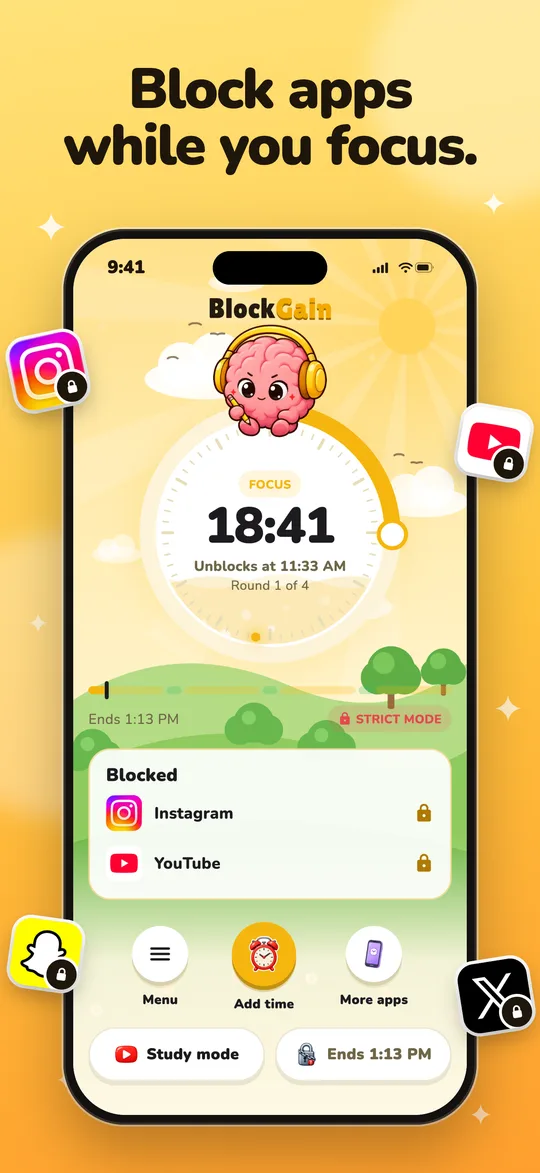 Blocked apps in BlockGain: pick the apps, and each one shows a stop screen when opened.
What blocking looks like in BlockGain
Here's what happens, step by step, with BlockGain's free daily limit.
- You pick up to 3 apps. They stay blocked all day.
- You open one. A stop screen appears. Our block screens rotate between tips, findings from studies, quotes and nudges, each with its own colour and brain mascot.
- You tap "Ask my inner self". It sends a notification. Tapping it opens BlockGain full screen.
- You take two slow breaths with the brain mascot. Then you choose "Never mind, I don't need it now" or "I badly need it".
- You pick 5, 10 or 15 minutes. That one app opens for that long, with a Live Activity countdown on your Lock Screen.
- It locks again. Even if you're still in the app.
Each unblock comes out of a daily budget you set: 15, 30, 45, 60, 90 or 120 minutes. When it's gone, the apps stay blocked until midnight. We explain the thinking in why a short unblock beats a hard block.
What a blocker adds on top
The built-in tools stop at limits. A blocker can do more:
- A focus timer that locks apps until it ends (free in BlockGain).
- Pomodoro rounds with breaks, for study or deep work (Pro).
- Schedules with presets like Bedtime, Work hours and Study time, with a real alarm when one starts (Pro).
- Strict mode and prevent uninstall during blocks, for when you know you'll try to wriggle out (Pro).
- Minimal: YouTube without Shorts and Instagram without Reels or the feed, with messages and search still working (Pro).
- Website blocking, so the habit doesn't just move to Safari (Pro).
 The Study time preset: your feeds wait while you work.
Which one should you use?
- You mostly get interrupted by notifications: start with a Focus.
- You open apps on autopilot: use a blocker so there's a real stop screen.
- You study or work in sessions: a focus timer that locks apps until it ends. See Pomodoro for students.
- You scroll in bed: a schedule that runs every night. See a bedtime phone schedule.
- Only part of an app is the problem: block the full app and use Minimal. See YouTube without Shorts.
Many people combine them: a Sleep Focus for quiet nights, plus a blocker for the two apps they can't put down.
Three mistakes when blocking apps
Blocking everything. If you block your maps, music and messages, you'll switch it off within a day. Calls and messages are never blocked in BlockGain unless you choose to. Start with the two or three apps that eat your time.
No way through. A block with no exit gets deleted the first time you really need the app. A short unblock from a daily budget keeps the block in place.
Forgetting the browser. Instagram, YouTube and TikTok all work in Safari. If the habit moves there, block the websites too: how to block websites on iPhone.
Pick one option today. You can always add the others later.
Sources
- Apple Support: Set up Screen Time for yourself on iPhone
- Apple Support: Set up a Focus on iPhone
- Apple Support: Set Screen Time schedules and time allowances on iPhone
Common questions
Can I block apps on iPhone without an app?
Yes, with Screen Time limits and schedules in Settings. They are easy to skip on your own phone, which is why many people add a blocker.
Do blocker apps see what I do?
Blockers built on Apple's Screen Time framework never see which apps you use; Apple keeps that on your iPhone. BlockGain has no account and no ads.
Can a blocked app still send notifications?
A Focus is the best tool for silencing notifications. Use it together with a blocker if notifications pull you back in.
Will blocking an app delete my data?
No. Blocking only stops the app from opening. Your messages, photos and settings in that app stay as they are.
Is there a free way to block apps properly?
Yes. BlockGain's daily limit is free for up to 3 apps, with 5, 10 or 15-minute unblocks from a daily budget, plus a free focus timer.
We build BlockGain, the screen time app for iPhone that blocks the apps that eat your day, with a breathing pause and a few minutes when you really need one. We write about focus, phone habits and getting your time back.