
To block websites on iPhone, use Screen Time to restrict sites in Safari, or use BlockGain Pro, which closes the sites you pick in Safari during your blocks. Block the site and the app, or the scroll just moves to the browser.
The short version:
- Screen Time can restrict websites in Safari, for free.
- BlockGain Pro closes the sites you pick during your schedules and focus sessions, together with the apps.
- Block both, app and site, or you swap one feed for another.
- Close other browsers you don't need, so Safari isn't the only door you lock.
Why block websites at all?
Instagram, YouTube and TikTok all work in Safari. When you block the app, the website is the next tap away.
Most people don't plan to switch. Your thumb opens Safari, types two letters, and autocomplete does the rest. Blocking the site too removes that shortcut before the habit forms. That's why we built website blocking into BlockGain alongside app blocking, so one block covers both.
Two ways to block websites, compared
Here's how the built-in option and BlockGain compare.
| Screen Time | BlockGain Pro | |
|---|---|---|
| Blocks chosen sites in Safari | Yes | Yes |
| Switches on only during your blocks | No, the list is always on | Yes, schedules and focus sessions |
| Blocks the app at the same time | Set up separately | Together |
| Hard to skip on your own phone | Needs a passcode someone else holds | Strict mode, prevent uninstall |
| Cost | Free | $19.99 a year, 7-day free trial |
Both are worth knowing. The rest of this post walks through each one, then gives you a simple plan.
Option 1: Screen Time website restrictions
In Settings → Screen Time, the content restrictions can limit websites in Safari and keep a list of sites that are never allowed. It's free and built in.
The catch: on your own phone, you know the passcode, or you set none. A Screen Time passcode that someone else holds is what makes it stick. Our guide to the Screen Time passcode explains how to set that up.
Screen Time's site list is also all-or-nothing. A site you never allow is blocked during your lunch break too, which is often when you'd want it.
Option 2: website blocking in BlockGain
In BlockGain Pro, add the sites that pull you in: youtube.com, instagram.com, tiktok.com, or whatever your own time sink is. They close in Safari during your blocks, together with the apps, and open again when the block ends.
That means one setup covers both doors. When your Study time schedule starts, the Instagram app and instagram.com are blocked together.
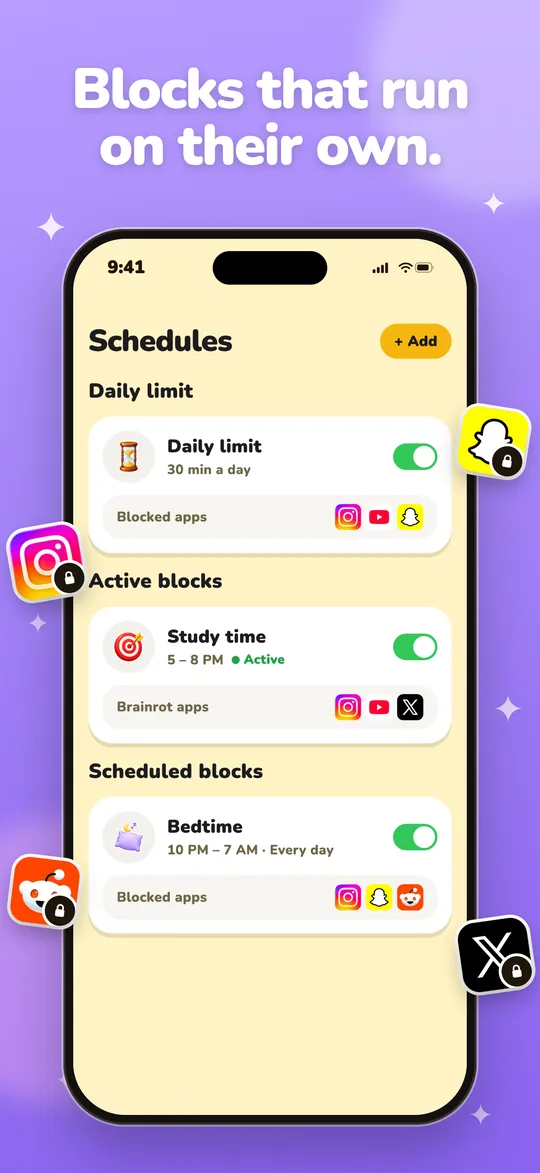 Schedules in BlockGain: blocked websites follow the same times as your blocked apps.
When website blocking helps most
During study. Use the Study time or Exam season preset, or a Pomodoro session. Sites close while you work and come back for the break. See Pomodoro for students.
At work. The Work hours preset keeps news and social sites closed while you're meant to be focused, without blocking the tools you need.
At night. The Bedtime preset closes the sites you scroll in bed, so you can't swap the app for the browser at 1am. Our bedtime phone schedule shows how to set one up.
 The Study time preset: apps and sites wait while you work.
Close the other browser doors
BlockGain's website blocking works in Safari. If you have another browser installed that you don't really use, it can become the new back door.
The simple fix is to add that browser app to your blocked apps in BlockGain. You keep Safari for normal browsing, and your blocked sites stay closed there during your blocks. It takes a minute and removes the last easy way around.
Make it hard to undo
A block is only as strong as the moment you try to get out of it. BlockGain Pro has two settings for that moment:
- Strict mode: no stop button until the block ends.
- Prevent uninstall during blocks, so deleting the app isn't an escape.
Use them for the blocks that matter most, like exam weeks or bedtime. Read more in strict mode explained.
Three mistakes when blocking websites
Blocking the app but not the site. This is the most common one. Block instagram.com when you block Instagram, and the same for YouTube and TikTok.
Blocking sites all day, every day. If a site is blocked even when you genuinely need it, you'll turn the block off. Tie it to schedules instead, so it's blocked when it matters and open when it doesn't.
Blocking everything. Start with the two or three sites you open on autopilot. You can add more once the first ones feel normal.
What we'd do, step by step
- Install BlockGain and connect Screen Time.
- Block the apps that eat your time. The daily limit is free for up to 3 apps.
- Add the matching websites in BlockGain Pro, like instagram.com or youtube.com.
- Pick a schedule preset, such as Study time, Work hours or Bedtime.
- Turn on strict mode for the blocks you know you'll try to skip.
BlockGain has no account and no ads, and it never sees which apps you use. For the app side of things, read how to block apps on iPhone.
Block the app and the site together, at the same times. That one change is what keeps the scroll from just moving house.
Sources
- Apple Support: Set up Screen Time for yourself on iPhone
- Apple Support: Set Screen Time schedules and time allowances on iPhone
Common questions
Can I block a website only during study time?
Yes. In BlockGain Pro, blocked websites close in Safari during your blocks, so they follow your schedules and focus sessions and open again when the block ends.
Can I block websites on iPhone for free?
Yes. Screen Time can restrict websites in Safari, for free. It holds best with a Screen Time passcode that someone else knows.
What about other browsers?
BlockGain's website blocking closes sites in Safari. If you have other browsers you don't need, add those apps to your blocked apps so they aren't a way around.
Is website blocking in BlockGain free?
It is part of BlockGain Pro, at $19.99 a year with a 7-day free trial, $4.99 a month, or $39.99 for lifetime.
Does BlockGain see which sites I visit?
No. BlockGain is built on Apple's Screen Time, Apple keeps screen time data on your iPhone, and BlockGain never sees which apps you use. There is no account and no ads.
We build BlockGain, the screen time app for iPhone that blocks the apps that eat your day, with a breathing pause and a few minutes when you really need one. We write about focus, phone habits and getting your time back.