To stop scrolling in bed, use a bedtime schedule that blocks your feed apps every night, like BlockGain's Bedtime preset (10 PM to 7 AM by default). It runs by itself, so there's nothing to decide when you're tired.
The short version:
- Screens in the last hour can push sleep later, so that hour matters most.
- A schedule beats a promise: it doesn't get tired at midnight.
- Block only the feeds. Keep alarms, calls and messages.
- BlockGain's Bedtime preset blocks the apps you pick every night, with a real alarm when it starts.
Why night scrolling costs so much
The Sleep Foundation says screens in the evening can delay sleep, and suggests avoiding them in the hour before bed. That's the first cost: the light and the stimulation keep you up.
Feeds add a second cost. There's always one more post, so "ten minutes" quietly becomes an hour. Nobody decides to stay up scrolling; it happens one swipe at a time.
That's why we built the Bedtime preset in BlockGain the way we did. It doesn't ask you to be strong at 11 PM. It makes the choice at 3 PM, when you're thinking clearly, and holds it for you later.
 The Bedtime preset in BlockGain: the feeds go to sleep before you do.
Why willpower fails at night
At the end of the day you're tired, and tired is when habits run the show. Your thumb opens the app before you've thought about it.
A promise to yourself ("no phone after ten") has to be kept again every single night. A schedule only has to be set up once. That's the whole trick.
If you've tried Screen Time limits and found yourself tapping past them, you're not alone. We look at why in why Screen Time limits don't work.
Screen Time, Sleep Focus or a blocker?
iPhone gives you two built-in tools for the night, and a blocker adds a third. They do different jobs.
| Tool | What it does at night | Can you skip it? |
|---|---|---|
| BlockGain Bedtime preset | Blocks the apps you chose every night, with a real alarm when it starts | Not from the stop screen, which only has a Close button |
| Sleep Focus | Quiets notifications and can hide apps from the home screen | Yes: apps still open from search |
| Screen Time schedules | Limits apps outside the times you allow | Yes: you can ignore the limit on your own phone |
A Sleep Focus and a blocking schedule work well together. One keeps the phone quiet; the other keeps the feeds shut.
Set up a bedtime schedule
Here's how we'd set it up, step by step.
- Choose the window. Start 30 to 60 minutes before you want to be asleep. The Bedtime preset starts at 10 PM and ends at 7 AM, and you can move both.
- Choose the apps. Pick the two or three you scroll in bed, not your whole phone.
- Leave the essentials. Calls and messages are never blocked unless you choose to block them. Your alarm still rings.
- Let it repeat every day, weekends included, so the habit stays the same.
- Turn on the start alarm if you like. A real alarm can sound when the schedule begins, even on silent, as a cue to put the phone down.
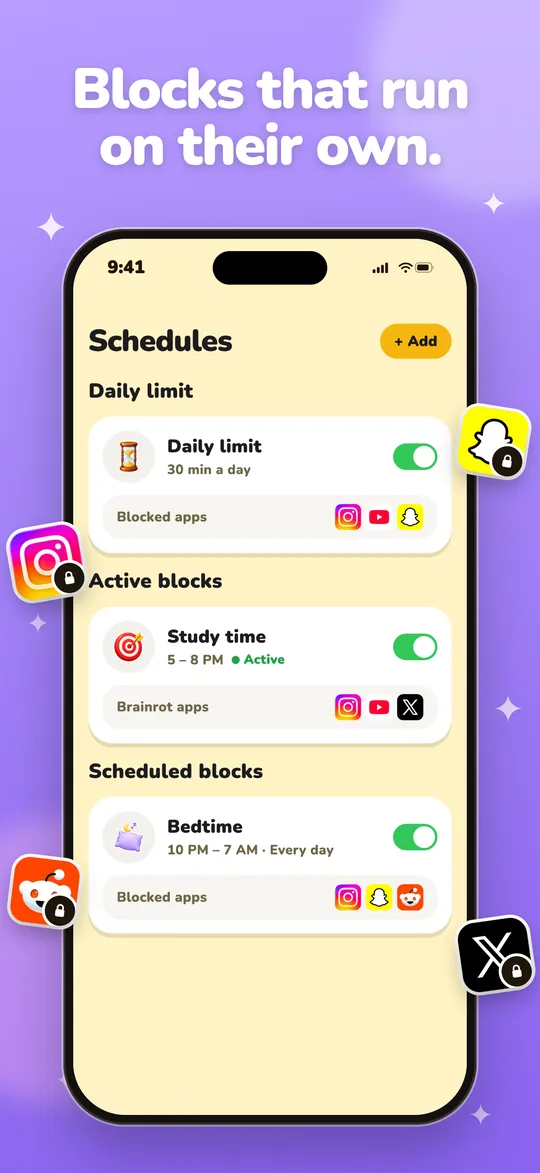 Schedules in BlockGain: pick Bedtime, choose your apps, and it repeats by itself.
What happens when you open a blocked app at night
You'll still reach for the phone. That's fine. When you open a blocked app, you see a stop screen instead of the feed.
BlockGain's block screens rotate. Some show a tip, some a finding from a study, some a quote or a gentle nudge, each with its own colour and brain mascot. You can switch types on or off in Settings → Block screens.
A schedule's stop screen has just a Close button, so the night stays blocked. For an app you might genuinely need late, use the daily limit instead. Its stop screen has "Ask my inner self": two slow breaths with the brain mascot, then 5, 10 or 15 minutes for that one app before it locks again.
That small, honest way through is what keeps the whole setup switched on for months. We explain why in why a short unblock beats a hard block.
What to do in the last hour instead
Blocking the feeds leaves a gap. Fill it with something easy, or your hand will go looking for the phone.
- Charge your phone across the room. Your alarm still works from there.
- Read something on paper. A book, a magazine, anything without a feed.
- Plan tomorrow in a notebook. Three lines is enough to clear your head.
- Stretch or tidy up. Small, calm, done in ten minutes.
- Keep the lights low. Your body takes the hint.
Make the morning part of it
Night and morning are one habit. If the phone is the first thing you touch when you wake, the scroll just moves to 7 AM.
The Bedtime preset ends at 7 AM by default, and the Morning routine preset can keep feeds shut a little longer while you get going. See how to build a morning phone habit for the other half of the plan.
If the scroll in bed is part of a bigger doomscrolling habit, how to stop doomscrolling on iPhone covers the daytime side too.
Three mistakes that undo a bedtime schedule
Blocking too much. If the schedule blocks your music, your podcasts or your partner's messages, you'll turn it off by Thursday. Block the feeds and nothing else.
Starting too late. A schedule that starts when you're already in bed starts after the scroll has begun. Start it while you're still brushing your teeth.
Weekends off. Two late nights a week undo the rhythm of the other five. Let it run every day, and adjust the times if Saturday needs to be later.
Give it a week. Most of the pull fades once your evenings stop ending in a feed.
Sources
- Sleep Foundation: How does blue light from electronic devices affect sleep?
- Apple Support: Set up a Focus on iPhone
- Apple Support: Set Screen Time schedules and time allowances on iPhone
Common questions
Will a bedtime block stop my alarm?
No. Blocking apps doesn't touch the Clock app or BlockGain's schedule alarms.
Can someone still call me at night?
Yes. Calls and messages aren't blocked unless you choose to block them.
What if I need an app late at night?
Put it in your daily limit rather than the bedtime schedule. After two slow breaths, it opens for 5, 10 or 15 minutes, then locks again by itself.
What time does the Bedtime preset run?
From 10 PM to 7 AM every day by default. You can change the start, the end and the days.
Is the Bedtime preset free?
Schedules and presets are part of BlockGain Pro, with a 7-day free trial on the yearly plan. The daily limit is free for up to 3 apps.
We build BlockGain, the screen time app for iPhone that blocks the apps that eat your day, with a breathing pause and a few minutes when you really need one. We write about focus, phone habits and getting your time back.