To block Reels on iPhone, block the full Instagram app and use BlockGain's Minimal instead: Instagram with no Reels and no endless feed, while your messages still work.
The short version:
- Instagram has no setting that removes the Reels tab.
- Screen Time can block Instagram, but only the whole app, messages included.
- BlockGain blocks the Instagram app, and Minimal gives you Instagram without Reels.
- Close Safari too, because Reels play there as well.
Why you can't just switch Reels off
Instagram's iPhone app has no setting that removes the Reels tab. You can tap "Not interested" or mute accounts, and Reels ease off a little. The tab stays where it is.
Instagram also has its own time reminder in its settings. It nudges you after a set time, and you can dismiss it with one tap. So "blocking Reels" really means two jobs: keeping what you need from Instagram, and putting the Reels somewhere your thumb can't reach.
We wrote about the in-app settings in more depth in Instagram without Reels: what actually works. This post is the blocking side: how to make Reels stay gone.
Your options at a glance
Here's how the ways to block Reels compare.
| Option | Blocks Reels? | Messages still work? | Easy to undo in the moment? |
|---|---|---|---|
| BlockGain: block the app + Minimal | Yes | Yes, in Minimal | No, only through a short unblock |
| Screen Time limit on Instagram | Yes, with the whole app | No, not after the limit | Yes, on your own phone |
| "Not interested" and muting | A little | Yes | n/a |
| Instagram's time reminder | No | Yes | Yes, one tap |
The pattern is simple. The built-in tools either take your messages with Reels or are easy to skip.
Option 1: block Instagram with Screen Time
Open Settings → Screen Time and set up an app limit for Instagram. When the time runs out, Instagram shows a limit screen. Apple's guides to Screen Time and time allowances are linked at the end of this post.
Two catches. Screen Time sees Instagram as one app, so it can't block Reels and leave your chats. And on your own phone, the limit screen lets you ignore the limit.
A Screen Time passcode that someone else holds makes it stick. That works, but it means asking a parent or friend every time you need Instagram for a real reason. If limits keep slipping, read why Screen Time limits stop working.
Option 2: block Reels and keep your chats, with BlockGain
This is the setup we built BlockGain for. You block the full Instagram app, and you open Instagram through Minimal instead.
Minimal opens Instagram inside BlockGain with Reels and the endless feed switched off. Your messages, search and profiles still work, so you can reply to a friend or check an event without the scroll.
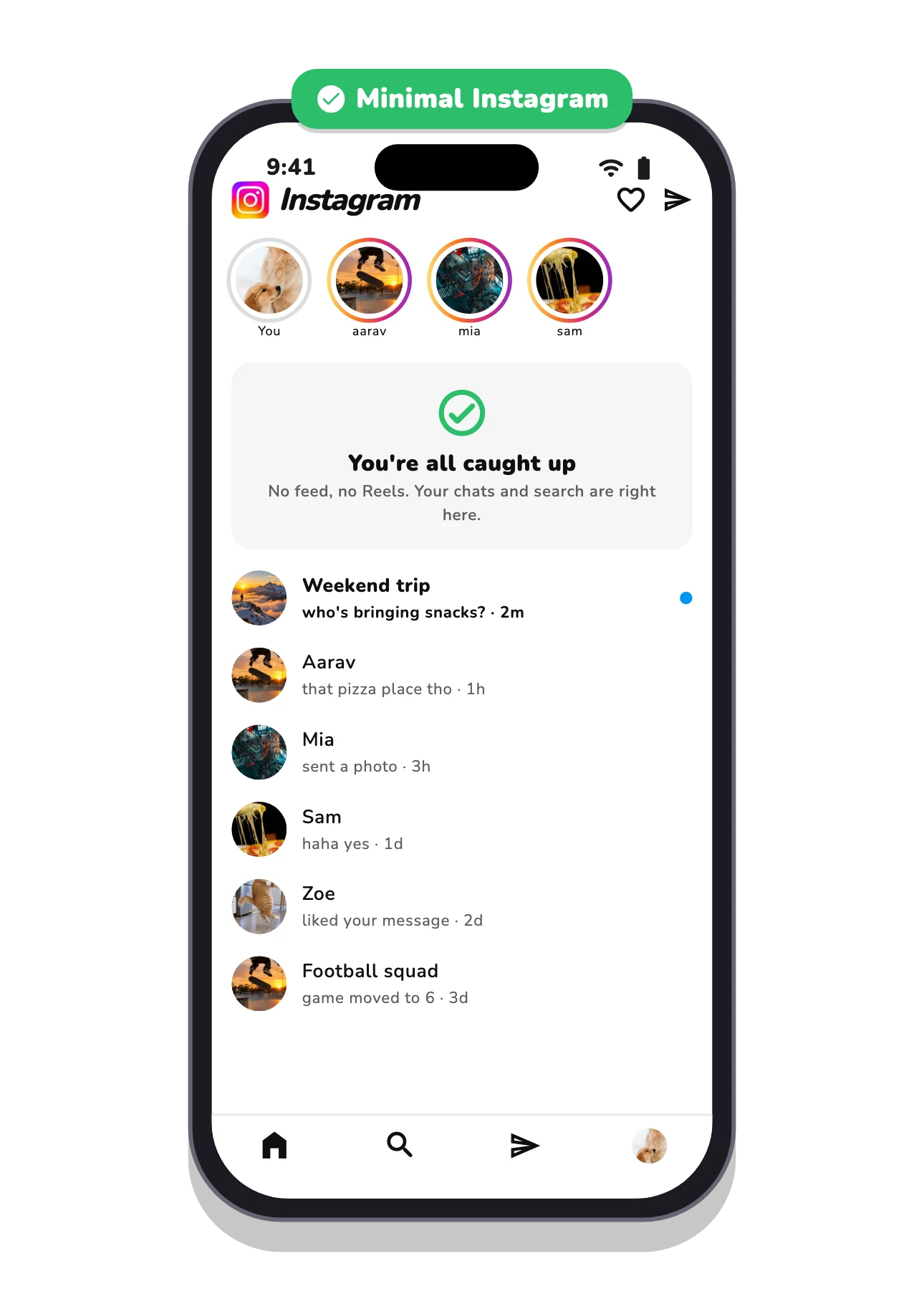 Instagram in Minimal: no feed, no Reels, chats remain.
You sign in once, on Instagram's own page. BlockGain never sees your password.
Pick a style:
- Clean: Reels and the feed gone.
- Quiet: Clean, in black and white.
- Zen: only the essentials.
- Custom: your own switches.
What happens when you open the real app
Once Instagram is blocked, tapping its icon shows a stop screen. In BlockGain's daily limit, the app stays blocked all day, and the stop screen points you to Instagram Minimal. The block holds even when BlockGain is closed, because it runs on Apple's Screen Time.
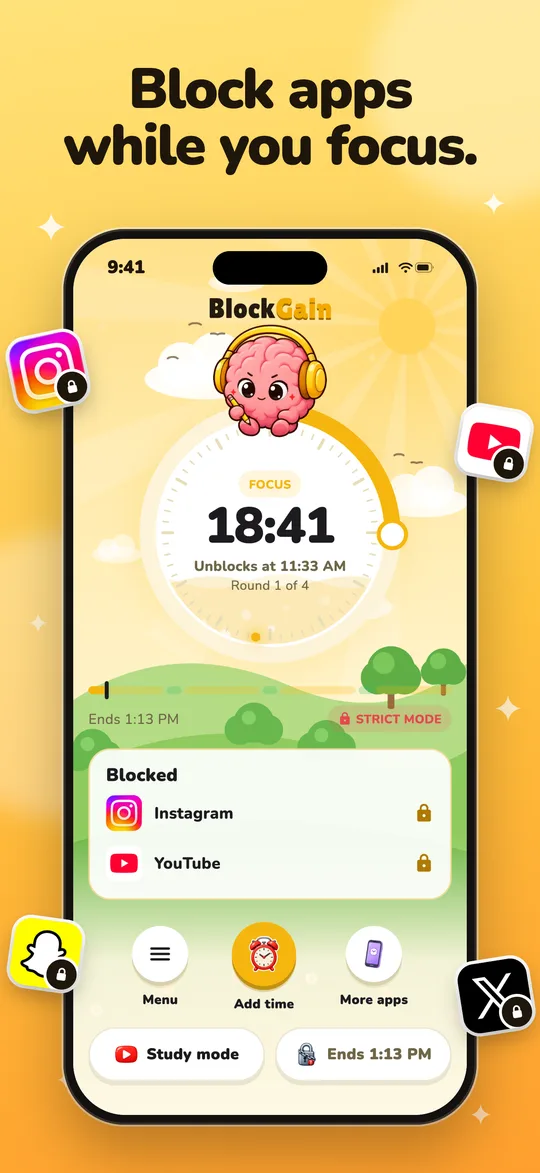 Blocked apps in BlockGain: the full Instagram app stops you, Minimal stays one tap away.
The stop screen has one button: "Ask my inner self". It sends a notification. Tap it and BlockGain opens for two slow breaths with the brain: in for 6 seconds, hold for 3, out for 6.
Then it asks if you still need the app. "Never mind, I don't need it now" keeps it blocked. "I badly need it" offers 5, 10 or 15 minutes from your daily budget.
When the time is up, Instagram locks again, even mid-scroll. A Live Activity counts down on your lock screen so it's never a surprise. We explain the thinking in why a short unblock beats a hard block.
Don't forget Safari
Instagram works in Safari, and Reels play there too. If the app is blocked, the habit can quietly move to the browser.
Screen Time can restrict websites in Safari. In BlockGain Pro, you can add instagram.com to your blocked websites, so it's blocked in Safari during your blocks as well. See how to block websites on iPhone for the full walkthrough.
Make it hold on the hard days
Schedules (Pro). Use a preset to block Instagram at set times, like evenings or exam weeks, without thinking about it each day.
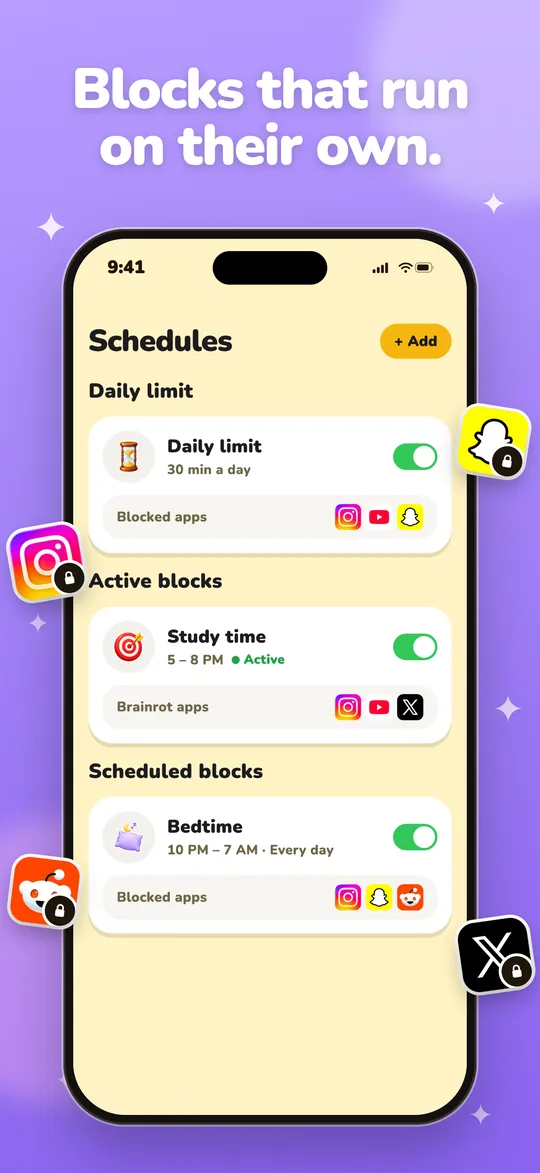 Schedules in BlockGain: pick a preset, and Instagram is blocked on time.
Strict mode and prevent uninstall (Pro). For the weeks when you know you'll try to wriggle out, these make the block harder to undo. Our guide to strict mode covers when it helps.
If TikTok is the other half of your scroll, the same steps work there. See how to block TikTok on iPhone.
Step by step
- Install BlockGain and connect Screen Time.
- Add Instagram to your blocked apps. The daily limit is free for up to 3 apps.
- Open Instagram in Minimal and pick Clean or Quiet (Pro).
- Sign in on Instagram's own page.
- Block instagram.com in Safari during blocks (Pro).
BlockGain has no account and no ads. Pro is $19.99 a year with a 7-day free trial, $4.99 a month, or $39.99 once for lifetime.
Give it a week. Most of what you open Instagram for is still there. Only the Reels are gone.
Sources
- Apple Support: Set up Screen Time for yourself on iPhone
- Apple Support: Set Screen Time schedules and time allowances on iPhone
Common questions
Can I block only Reels on Instagram?
Not in the Instagram app, and not with Screen Time, which limits whole apps. BlockGain's Minimal opens Instagram without Reels and the endless feed, while messages, search and profiles still work.
Will blocking Reels block my Instagram messages?
With Screen Time, yes, because it blocks the whole app. With BlockGain's Minimal, no. You keep your chats and lose only Reels and the feed.
Can I block Reels in Safari too?
Instagram works in Safari, Reels included. Screen Time can restrict websites in Safari, and BlockGain Pro can block instagram.com in Safari during your blocks.
What if I really need the full Instagram app?
Tap "Ask my inner self" on the stop screen and open the notification. After two slow breaths, you can pick 5, 10 or 15 minutes, then it locks again by itself.
Is blocking Reels with BlockGain free?
Blocking the Instagram app with the daily limit is free for up to 3 apps. Minimal, the Instagram without Reels, is part of BlockGain Pro, with a 7-day free trial on the yearly plan.
We build BlockGain, the screen time app for iPhone that blocks the apps that eat your day, with a breathing pause and a few minutes when you really need one. We write about focus, phone habits and getting your time back.