The Instagram app on iPhone has no setting to remove Reels. To use Instagram without Reels, open it in BlockGain's Minimal, which switches off Reels and the endless feed, and block the full app.
The short version:
- Inside Instagram: "Not interested" and muting reduce Reels a little. The tab stays.
- Screen Time can limit all of Instagram, but not just Reels.
- BlockGain's Minimal: no Reels tab, no endless feed; messages, search and profiles still work.
- Block the full app so you don't drift back to the Reels version.
What works and what doesn't
We built Minimal in BlockGain because the in-app fixes only take the edge off. Here's how the options compare on an iPhone today.
| Option | Removes the Reels tab? | Removes the endless feed? | Messages still work? |
|---|---|---|---|
| BlockGain Minimal | Yes | Yes | Yes |
| "Not interested" on Reels | No | No | Yes |
| Muting accounts | No | No | Yes |
| Screen Time limit on Instagram | No (limits all of it) | No | Only within the limit |
| Instagram in Safari | No | No | Yes |
The rest of this post goes through each one, then shows how to set up Minimal so it lasts.
Why Reels are hard to stop
A Reel starts before you decide whether you want it, and the next one is a swipe away. There is no end, so stopping always takes a decision.
Late at night, that decision is hard. Willpower rarely wins against a feed built never to finish. The fix that holds is to remove the feed, so the next Reel simply isn't there. If the scroll goes beyond Instagram, read how to stop doomscrolling on iPhone.
What you can change in the Instagram app
A few settings help a little:
- "Not interested": mark Reels you don't want, to steer what you see.
- Mute accounts whose Reels pull you in.
- Instagram's time reminder in its settings nudges you after a set time. You can dismiss it.
These make Reels a little less sticky. They don't remove the tab or stop the feed from refilling.
What Screen Time can and can't do
In Settings → Screen Time, you can give Instagram a daily time allowance. When it runs out, you see a limit screen, with an option to ignore it on your own phone.
Screen Time works on whole apps. It can't tell Reels apart from your messages, so a limit on Instagram cuts off your friends too. For a stronger cap on the full app, see how to set a daily limit for Instagram.
Instagram without Reels, in Minimal
Minimal opens Instagram inside BlockGain with Reels and the endless feed switched off. Your messages, search and profiles still work, so you can reply to a friend or look someone up without falling into the scroll.
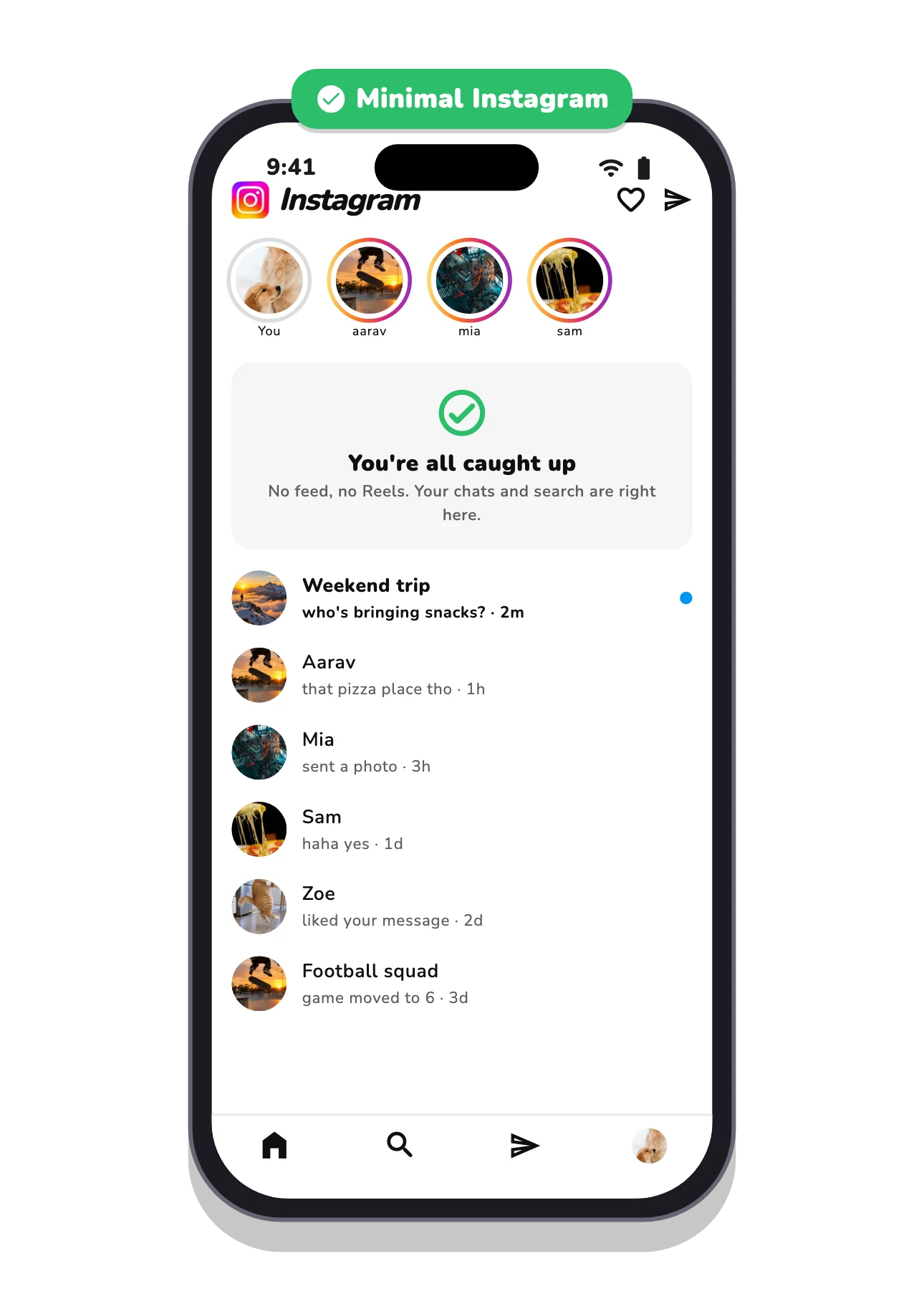 Instagram in Minimal: no feed, no Reels, chats remain.
You sign in once, on Instagram's own page. BlockGain never sees your password.
Pick the style that suits you:
- Clean: feeds and Reels gone.
- Quiet: Clean, in black and white, so photos pull less.
- Zen: only the essentials.
- Custom: your own switches.
Make it stick: block the full app
Minimal works best when the full Instagram app is out of the way. Add Instagram to your blocked apps in BlockGain, and open Instagram from Minimal instead.
When you open the full app, you see a stop screen. Block screens rotate between offline ideas, findings from studies, quotes and tough love, each with its own colours and brain mascot.
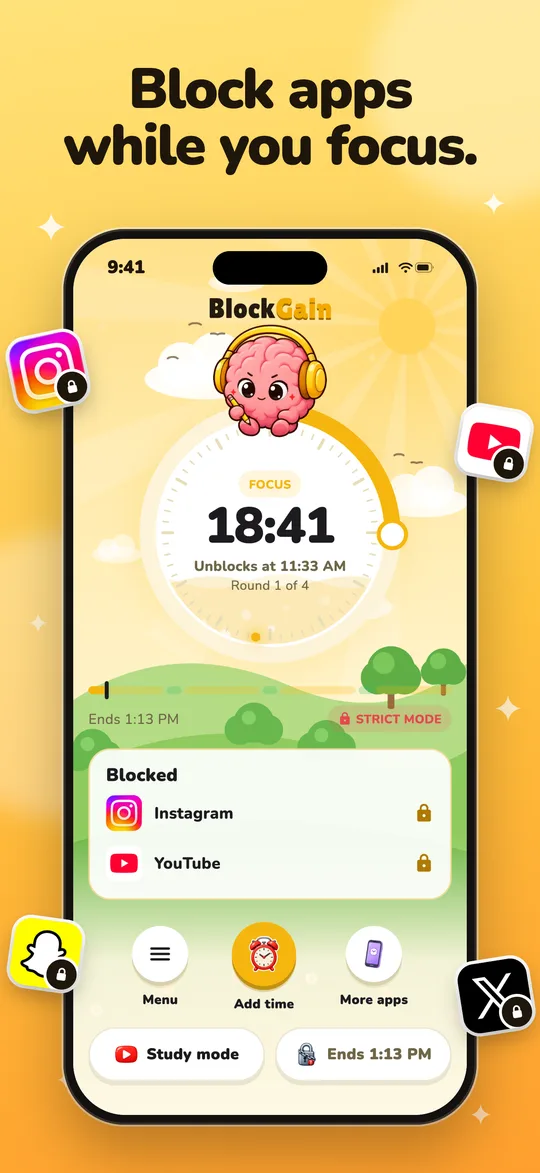 Blocked apps in BlockGain: the full Instagram app shows a stop screen, Minimal stays one tap away.
If you really need the full app, tap "Ask my inner self" and open the notification. After two slow breaths in BlockGain, pick 5, 10 or 15 minutes from your daily budget; it locks again when the time is up, even if you're still in it. We explain why in why a short unblock beats a hard block.
The same idea for YouTube
If Shorts are your Reels, Minimal does the same for YouTube. It opens without the Shorts tab, the Shorts shelf and the endless home feed, while search and subscriptions still work.
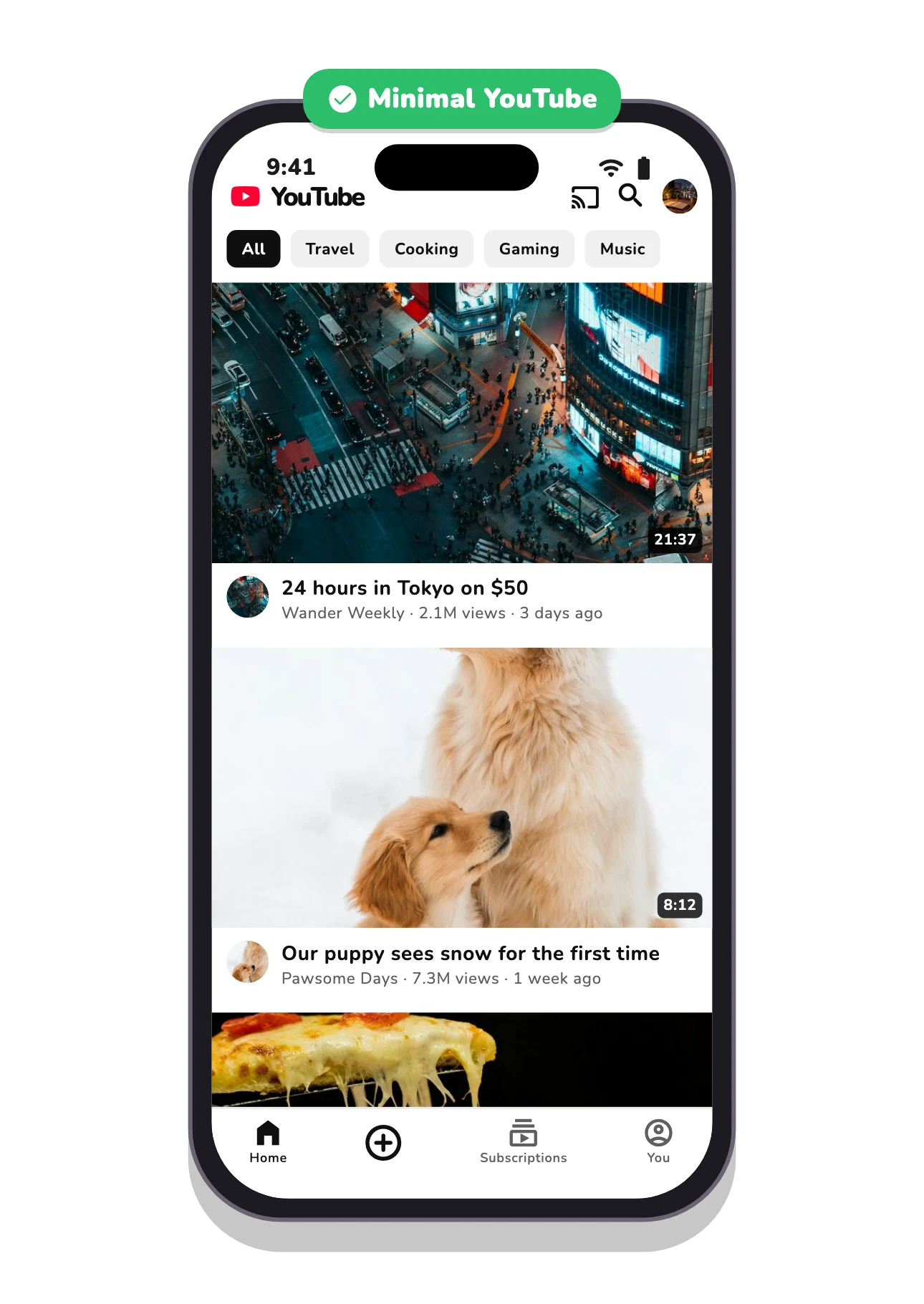 YouTube in Minimal: no Shorts, no endless feed.
Read the full guide: how to watch YouTube without Shorts.
Three mistakes that bring Reels back
Leaving the full app open. If the Instagram app is one tap away, your thumb will find it on a tired evening. Block it, and let Minimal be your everyday Instagram.
Swapping to Safari. Instagram works in Safari too, and the feed is waiting there. Add instagram.com to your blocked websites in BlockGain Pro, so the habit doesn't just move browsers.
Making it all-or-nothing. A block with no way through gets switched off the first time you need the app. A few minutes, then locked again, keeps it in place.
What we'd do, step by step
- Install BlockGain and connect Screen Time.
- Add Instagram to your blocked apps (the daily limit is free for up to 3 apps).
- Open Instagram in Minimal and pick Clean or Quiet (Pro).
- Sign in on Instagram's own page.
- Block instagram.com too, so Safari isn't a way around (Pro).
BlockGain has no account and no ads, and it never sees which apps you use. Give it a week before you judge it. The feed was the habit, not your friends.
Sources
Common questions
Can I remove the Reels tab from Instagram?
Not in the Instagram app; there is no setting for it. BlockGain's Minimal opens Instagram without the Reels tab or the endless feed.
Can I still send messages in Minimal?
Yes. Messages, search and profiles all still work. Only Reels and the endless feed are switched off.
Do I need to sign in again in Minimal?
Yes, once, on Instagram's own page. BlockGain never sees your password.
Can Screen Time block only Reels?
No. Screen Time limits whole apps and websites, so it can limit Instagram but not just the Reels part of it.
Does Minimal work for YouTube Shorts too?
Yes. YouTube opens without Shorts and the endless home feed, with search and subscriptions still working.
Is Minimal free?
Minimal is part of BlockGain Pro, with a 7-day free trial on the yearly plan ($19.99 a year after that).
We build BlockGain, the screen time app for iPhone that blocks the apps that eat your day, with a breathing pause and a few minutes when you really need one. We write about focus, phone habits and getting your time back.