Screen Time limits usually aren't broken. On your own iPhone, the limit screen lets you ignore the limit, so it only nudges. Hand the passcode to someone else, or use a blocker like BlockGain that keeps apps blocked and opens one for 5 to 15 minutes.
The short version:
- "Ignore Limit" is the most common reason limits don't stick.
- Check the basics: Screen Time on, the right apps in the limit, the right days.
- Watch for the website: blocking the app can move the habit to Safari.
- For limits that hold: someone else's passcode, or BlockGain's daily limit with a daily budget.
Why your limit lets you straight back in
Apple's app limits are built as a reminder, not a lock. When the time runs out, you see a limit screen. On a phone you manage yourself, that screen offers more time or a way to ignore the limit, and it takes a tap.
That is fine for some people. If the app is the one you reach for without thinking, a tap is nothing. Your thumb learns where the button is within a day or two.
We built BlockGain's daily limit around that exact gap. In BlockGain, a blocked app shows a stop screen with no way to ignore it. The only button is "Ask my inner self", and it doesn't open the app on its own.
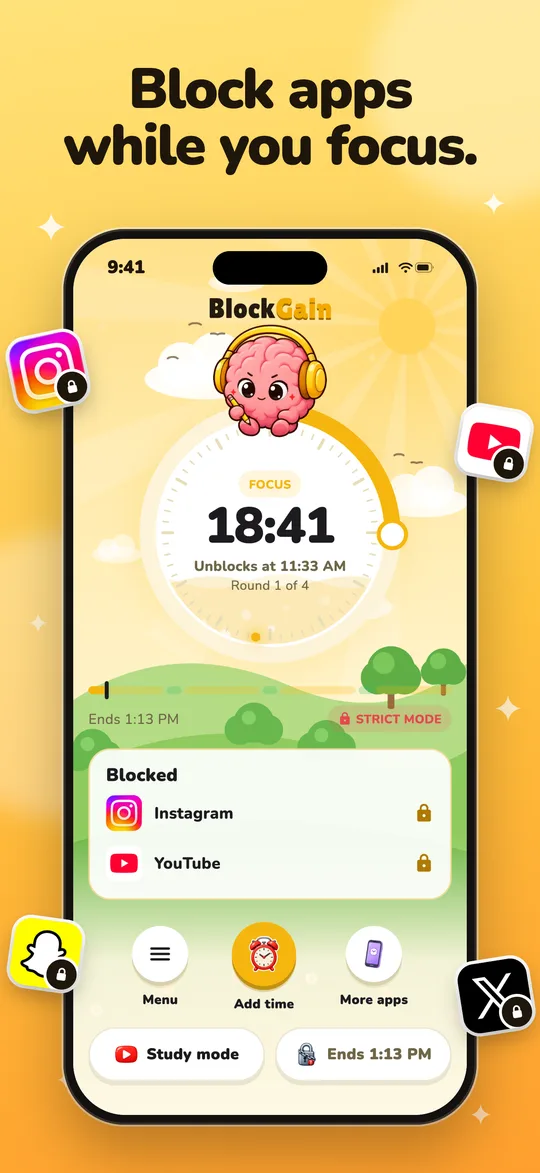 A blocked app in BlockGain: a stop screen, and one button that asks before it opens anything.
Check the basics first
Before you change tools, make sure the limit you set is the one iPhone is running. Open Settings → Screen Time → App Limits and check each of these.
- Screen Time is on. If it was turned off or reset, every limit goes with it.
- The right app is in the limit. A limit on a category can miss the app you actually use. A new app, or a reinstalled one, may not be in it.
- The right days are set. A limit for weekdays only leaves the weekend wide open.
- "Block at End of Limit" is on. With a Screen Time passcode set, it makes extra time need that passcode.
- The time is realistic. A limit you hit by mid-morning gets ignored by lunch.
If all of that is right and the limit still doesn't hold, the problem isn't the settings. It is that you hold the key.
The website workaround
Blocking the app but not the site simply moves the habit. If you notice yourself typing the app's name into Safari, add the website to your limit too.
Screen Time can limit websites, and BlockGain Pro can block websites as well. We cover both in how to block websites on iPhone.
What makes a limit actually stick
There are two honest ways to make a limit hold. One is to take the key away from yourself. The other is to make the way in small and slow, so you don't need to switch the whole thing off.
| Fix | What it does | Good for |
|---|---|---|
| Someone else sets the Screen Time passcode | Ignoring the limit needs their code | Parents, partners, accountability |
| BlockGain daily limit | Apps stay blocked; 5, 10 or 15 minutes at a time from a daily budget | Your own phone, no one else involved |
| Strict mode (Pro) | No stop button until the block ends | Exams, deep work, late nights |
| Prevent uninstall (Pro) | Deleting the app isn't a way out during blocks | The moment you're tempted to delete it |
| Website blocking | The habit can't move to Safari | Feeds you also use in a browser |
The passcode route works well if you have someone to hold it. We explain how to set it up in the Screen Time passcode guide.
How BlockGain's daily limit works
The daily limit is free for up to 3 apps. The apps you choose stay blocked all day, every day.
When you really need one, tap "Ask my inner self" on the stop screen. The notification opens BlockGain full screen for two slow breaths with the brain mascot, with no way to skip.
Then the brain asks if you still need the app: "Never mind" keeps it blocked, and "I badly need it" opens that one app for 5, 10 or 15 minutes. When the time is up, it locks again, even while you're still in it.
You pick a daily budget: 15, 30, 45, 60, 90 or 120 minutes. Each unblock spends 5, 10 or 15 minutes of it, and you only see the options that fit in what's left. When it's gone, the apps stay blocked until midnight, and there is nothing to argue with.
A Live Activity shows the countdown in the Dynamic Island and on the Lock Screen, so you always know how long is left. Why a short unblock works better than a hard block is in why a short unblock beats a hard block.
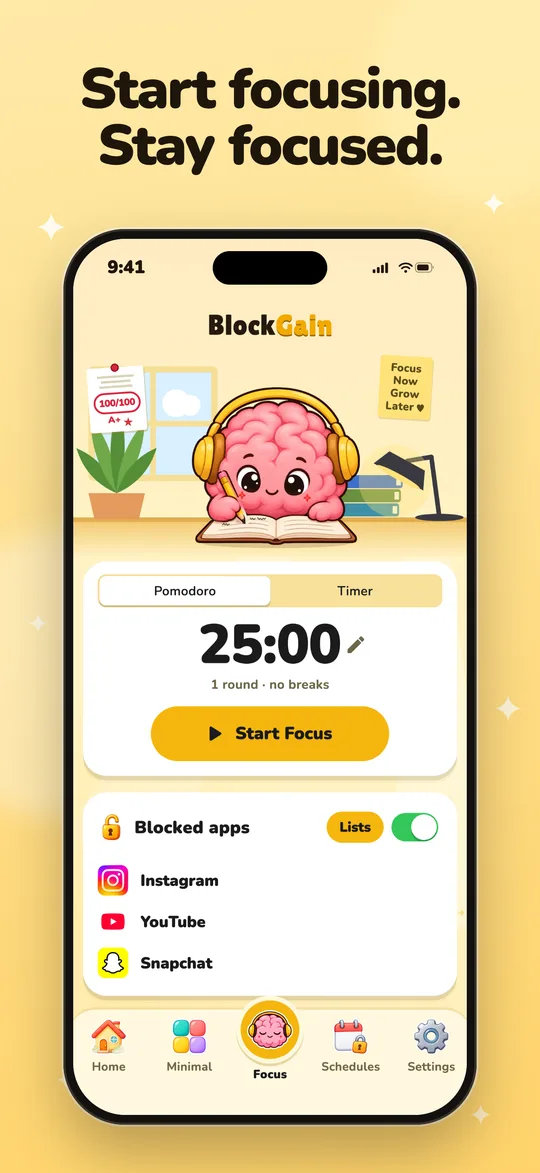 BlockGain's focus timer. The same countdown appears on the Lock Screen while a session runs.
When you need more than a limit
Some days a limit isn't enough. For those, BlockGain Pro adds a few tools.
- Strict mode: a focus session with no stop button until it ends.
- Schedules: blocks that switch on by themselves, with presets like Bedtime, Morning routine and Study time.
- Prevent uninstall: during a block, deleting the app isn't an escape.
Pro is $19.99 a year with a 7-day free trial, $4.99 a month, or $39.99 once. There is no account and no ads. Apple keeps your screen time data on your iPhone, and BlockGain never sees which apps you use.
What we'd do, step by step
- Check your App Limits against the list above and fix anything that's off.
- Pick the two or three apps that keep getting past your limit.
- Add them to BlockGain's daily limit and choose a budget you can live with, like 30 minutes.
- Block the website versions if you use them in Safari.
- Add a Bedtime schedule if late-night scrolling is where the limit fails most.
Give it a week. The first few days, you will hit the stop screen often. That is the habit showing itself, and it fades once the phone stops giving in.
Sources
- Apple Support: Set up Screen Time for yourself on iPhone
- Apple Support: Set Screen Time schedules and time allowances on iPhone
Common questions
Why does my iPhone let me ignore app limits?
On your own phone, the limit screen lets you ask for more time or ignore the limit, unless it is protected by a Screen Time passcode you don't know.
Do Screen Time limits reset at midnight?
Yes, daily limits start again each day.
Is there a stricter alternative?
BlockGain keeps your daily limit apps blocked and only opens one app for 5, 10 or 15 minutes at a time, after two slow breaths, from a daily budget you choose.
Does BlockGain replace Screen Time?
It uses Apple's Screen Time underneath, so the blocks are enforced by iPhone itself.
Is BlockGain's daily limit free?
Yes, for up to 3 apps. Strict mode, schedules and prevent uninstall are part of Pro.
We build BlockGain, the screen time app for iPhone that blocks the apps that eat your day, with a breathing pause and a few minutes when you really need one. We write about focus, phone habits and getting your time back.