To set a daily limit for Instagram on iPhone, use Instagram's own reminder, a Screen Time limit, or BlockGain's daily limit, which keeps Instagram blocked and opens it 5 to 15 minutes at a time from a daily budget.
The short version:
- Instagram's reminder tells you when your time is up, then lets you dismiss it and carry on.
- Screen Time shows a limit screen, with an option to ignore it on your own phone.
- BlockGain's daily limit keeps Instagram blocked all day and opens it for 5, 10 or 15 minutes at a time from a budget you choose. It's free for up to 3 apps.
Why a limit on Instagram is hard to keep
Instagram is where your friends are, so blocking it completely rarely lasts. You need it for a message, a school group or an event, and then the feed and Reels are right there.
A good limit has to do two things: let you in for the real reasons, and get you back out before the scroll takes over. We built BlockGain's daily limit around exactly that.
Three options, compared
Here's how the three ways to limit Instagram compare on an iPhone today.
| Instagram reminder | Screen Time limit | BlockGain daily limit | |
|---|---|---|---|
| When time is up | A reminder you can dismiss | Limit screen, can ignore | Blocked until midnight |
| Using it for a message | Any time | Any time | 5, 10 or 15 minutes from your budget |
| Locks again by itself | No | No | Yes, even mid-scroll |
| Countdown while you use it | No | No | Live Activity on Lock Screen |
| Cost | Free | Free | Free for up to 3 apps |
Each one is useful. The rest of this post walks through them, then helps you pick a budget.
Option 1: Instagram's own time reminder
Instagram has a time reminder in its settings. You choose an amount of time, and it nudges you when you reach it.
It is a reminder, not a lock. You dismiss it and keep scrolling, which is easy to do when you're tired.
Option 2: a Screen Time limit
In Settings → Screen Time you can give Instagram, or all social apps, a daily time allowance. When it runs out, you see a limit screen.
On your own phone, that screen has an option to ignore the limit. A Screen Time passcode someone else holds makes it stick, and with one set, Block at End of Limit makes extra time need that passcode. If you keep tapping past, read why Screen Time limits don't work.
Option 3: a daily budget in BlockGain
In BlockGain, Instagram sits in your daily limit: blocked all day, with a budget of minutes you spend 5, 10 or 15 at a time.
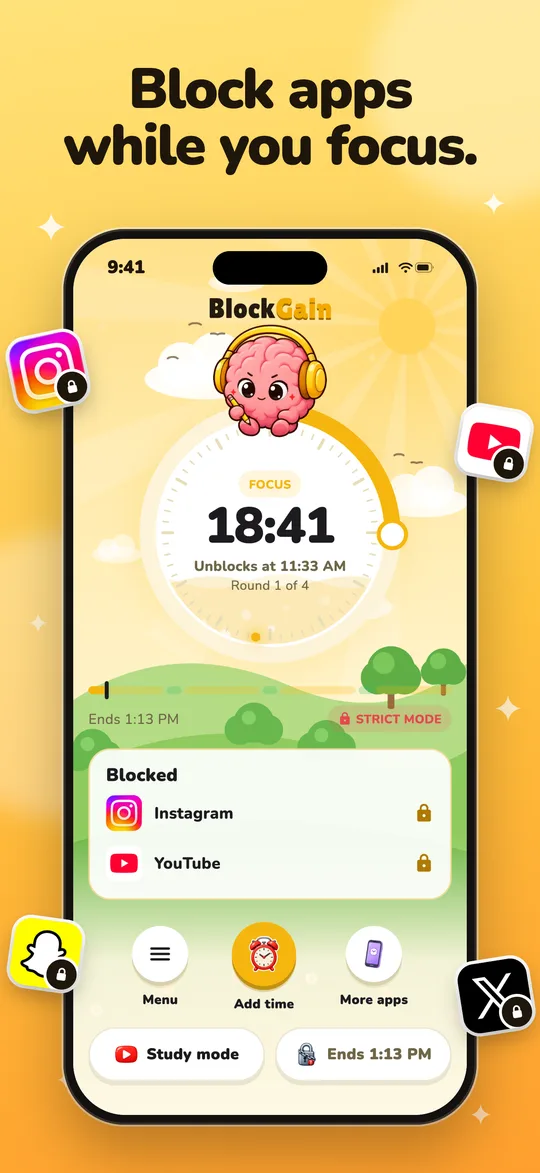 Blocked apps in BlockGain: Instagram stays blocked until you ask your inner self.
Here's what happens when you open it:
- A stop screen appears. Block screens rotate between offline ideas, findings from studies, quotes and tough love, each with its own colours and brain mascot.
- Tap "Ask my inner self". It sends a notification; tap it to open BlockGain full screen.
- Take two slow breaths with the brain mascot. Then tap "Never mind, I don't need it now" or "I badly need it".
- Pick 5, 10 or 15 minutes. Instagram opens for that long, with a Live Activity countdown on your Lock Screen and in the Dynamic Island.
- It locks again when the time is up, even if you're still in it.
That small pause is the point. You still get in for the message, but each visit is a choice, not a reflex. We explain the thinking in why a short unblock beats a hard block.
How much time should you give Instagram?
BlockGain's budget options are 15, 30, 45, 60, 90 or 120 minutes a day. When the budget is gone, Instagram stays blocked until midnight.
Start lower than feels comfortable: 15 or 30 minutes is up to three or six 5-minute visits. If you keep running out for real reasons, like messages or a group chat, raise it a step. It's easier to loosen a limit than to win back time once a habit settles.
Whatever you pick, the rule stays the same: two slow breaths, 5, 10 or 15 minutes, then it locks again. That rhythm is what turns a long scroll into a few short, deliberate visits.
Keep messages, lose the feed
If you mostly open Instagram for messages, there's a calmer way in. Minimal, in BlockGain Pro, opens Instagram without Reels and without the endless feed. Messages, search and profiles still work.
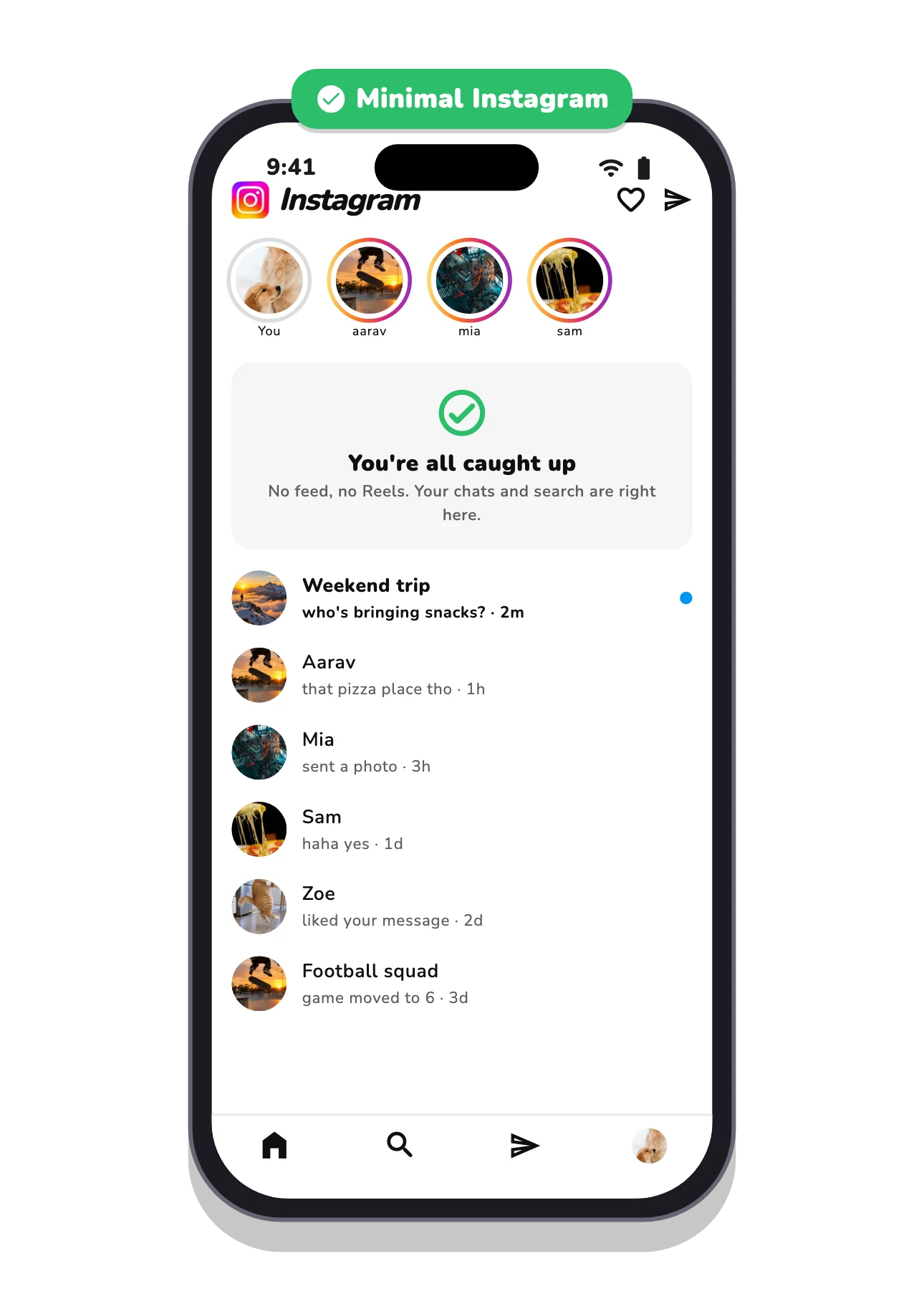 Instagram in Minimal: no feed, no Reels, chats remain.
You sign in on Instagram's own page, and BlockGain never sees your password. Keep the full app in your daily limit, and use Minimal for the everyday check-ins. Read more in Instagram without Reels.
Three mistakes with Instagram limits
Relying on the reminder alone. A reminder you can dismiss works on good days. On bad days, you need something that locks again by itself.
Forgetting Safari. Instagram works in Safari too. If the habit moves there, add instagram.com to your blocked websites in BlockGain Pro. See how to block websites on iPhone.
Setting the budget too high. Two hours a day feels safe, but it rarely changes anything. Start small and adjust after a week.
What we'd do, step by step
- Install BlockGain and connect Screen Time.
- Add Instagram to your daily limit (free for up to 3 apps).
- Pick a budget of 15 or 30 minutes.
- Use Minimal for messages if the feed is the problem (Pro).
- Check Home after a week to see your screen time and top apps.
BlockGain has no account and no ads. Apple keeps your screen time data on your iPhone, and BlockGain never sees which apps you use.
Sources
- Apple Support: Set up Screen Time for yourself on iPhone
- Apple Support: Set Screen Time schedules and time allowances on iPhone
Common questions
Can I put a limit on Instagram without deleting it?
Yes. Instagram's reminder, a Screen Time limit and BlockGain's daily limit all keep the app installed. They only change when and how long you can use it.
What happens when my daily budget runs out?
In BlockGain, Instagram stays blocked until midnight. The next day your budget starts again.
Does the limit apply to Instagram in Safari?
Instagram works in Safari too. Screen Time can restrict websites in Safari, and BlockGain Pro closes the sites you pick in Safari during your blocks.
Will I still get Instagram messages?
Notifications still arrive. Reply in a short unblock, or use Minimal in BlockGain Pro, where messages work without the feed or Reels.
Is BlockGain's daily limit free?
Yes, for up to 3 apps. Pro adds more apps, schedules, Minimal and website blocking, with a 7-day free trial on the yearly plan.
We build BlockGain, the screen time app for iPhone that blocks the apps that eat your day, with a breathing pause and a few minutes when you really need one. We write about focus, phone habits and getting your time back.