iPhone has no built-in study mode, but you can build one in about ten minutes. Create a custom Study Focus to silence notifications and show a calm Home Screen, then use BlockGain to actually block the apps that pull you away while you study.
The short version:
- There's no "Study mode" switch on iPhone. A custom Focus is the closest thing.
- A Study Focus silences notifications and can show only your study apps.
- A Focus doesn't block apps, so add an app blocker for the hard part.
- In BlockGain, start a focus timer (or Pomodoro, in Pro) and your chosen apps stop opening.
- Schedules make it automatic, so study time starts without a decision.
Why iPhone doesn't really have a study mode
Apple's answer to "study mode" is Focus. It comes with Do Not Disturb, Sleep, Work and Personal, and you can add your own.
A Focus is great at one job: keeping notifications quiet. It is not built to stop you opening apps. If you swipe to search and tap TikTok, it opens as usual.
So a real study setup has two layers. The Focus quiets the phone, and a blocker keeps the apps shut.
What each tool actually does
Here's how the built-in tools compare with BlockGain for studying.
| Tool | Silences notifications? | Stops apps opening? | Easy to skip? |
|---|---|---|---|
| Study Focus (built in) | Yes | No | Yes, one tap |
| Screen Time app limits | No | Yes, after the limit | Yes, on your own phone |
| BlockGain focus timer | No | Yes, during the session | Leave early takes a 5-second hold |
| BlockGain strict mode (Pro) | No | Yes, during the session | No, not until it ends |
The Focus and the blocker fill each other's gaps. Use both and your phone stays quiet and shut.
Step 1: create a Study Focus
We checked these steps against Apple's guide to setting up a Focus, linked at the end.
- Open Settings and tap Focus.
- Tap the Add button (+), then tap Custom.
- Name it Study, pick a colour and an icon, and tap Next.
- Tap Customize Focus to set the options below.
Give it a name you'll recognise at a glance. A book icon is a nice touch.
Step 2: choose who and what can reach you
In your Study Focus, tap People to pick who can still notify you. Family is a sensible choice, in case something urgent comes up.
Then tap Apps and allow only what study needs. That might be your calendar, your school app or a timer. Leave out social apps, games and shopping.
Under Options, you can choose whether silenced notifications still show on the Lock Screen. For studying, hiding them is calmer.
Step 3: a quieter Home Screen and Lock Screen
A Focus can switch your Home Screen to chosen pages while it's on. Make one page with only study apps: notes, calendar, dictionary, your timer. Pick that page for the Study Focus.
You can also link a Lock Screen to it. A plain wallpaper with the time is enough. When you pick up your phone, it looks like study time, not scroll time.
 A calm Home Screen with only study apps makes the first tap a useful one.
Step 4: schedule it
In the Focus settings, tap Add Schedule. You can turn the Focus on at a set time, at a place such as the library, or when you open a certain app.
A weekday schedule, say 4 pm to 7 pm, works well for homework. You can also turn the Focus on by hand from Control Centre whenever you sit down.
Step 5: block the apps, not just the alerts
This is where a Focus stops helping. The notification is gone, but the habit isn't, and the app is one search away.
We built BlockGain for this part. It uses Apple's Screen Time to block the apps you choose, so a blocked app shows a stop screen instead of the feed. It works on iPhone only, with no account and no ads.
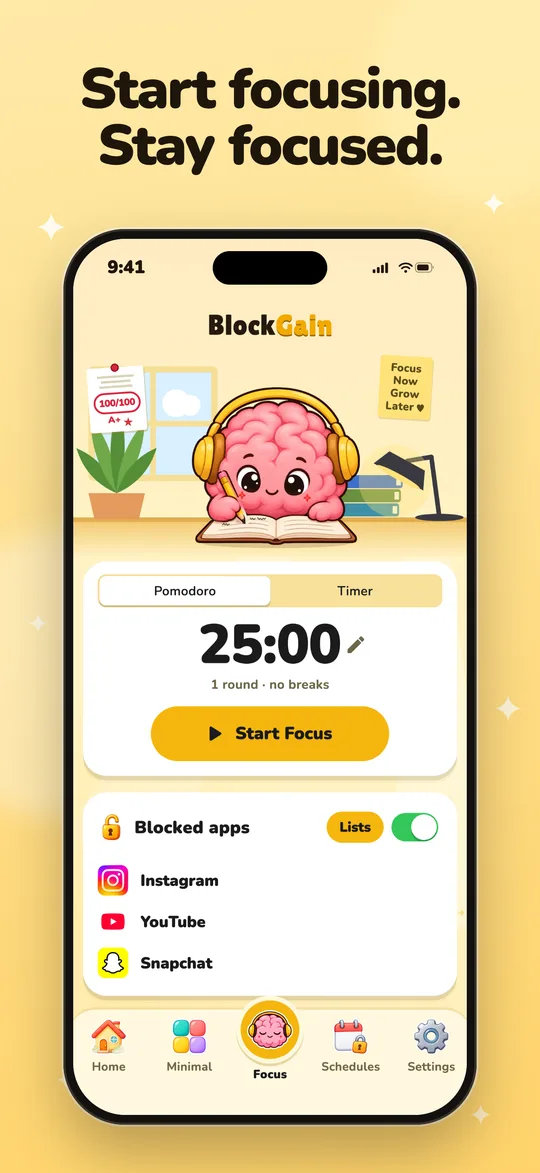 In BlockGain, pick Timer or Pomodoro and tap Start Focus.
Timer is one long block, and it's free. Pomodoro (Pro) runs rounds with short breaks and a long break after a few rounds. Our guide to Pomodoro for students covers which lengths to pick.
During the session
Once the session starts, your blocked apps stop opening until it ends. A Live Activity counts down on your Lock Screen and in the Dynamic Island, so you can see the time left without opening anything.
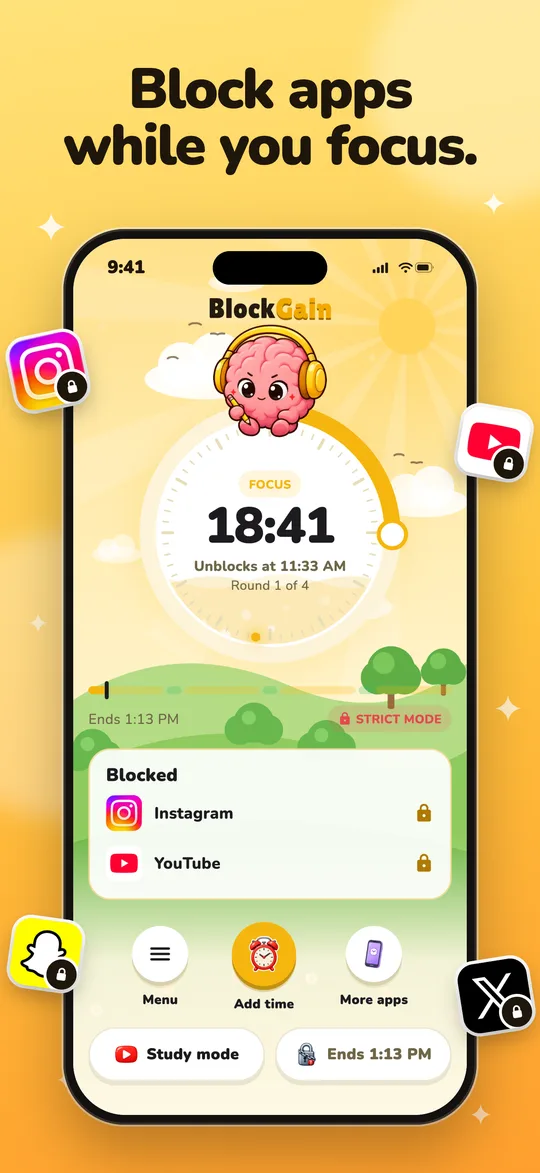 A focus session in BlockGain: blocked apps, Add time and the Study mode button.
Need more time? Tap Add time. Want to stop? Leave early asks you to hold for 5 seconds, which is often long enough to change your mind.
If you know you'll give in, turn on strict mode (Pro). There's no ending the session early. Read strict mode explained for when it's worth it.
Lectures on YouTube without the rabbit hole
Lots of studying happens on YouTube. Blocking it completely breaks your plan, and leaving it open breaks your focus.
YouTube study mode (Pro) fixes this. Add YouTube to your blocked apps and mark your study channels. During focus, only those channels play.
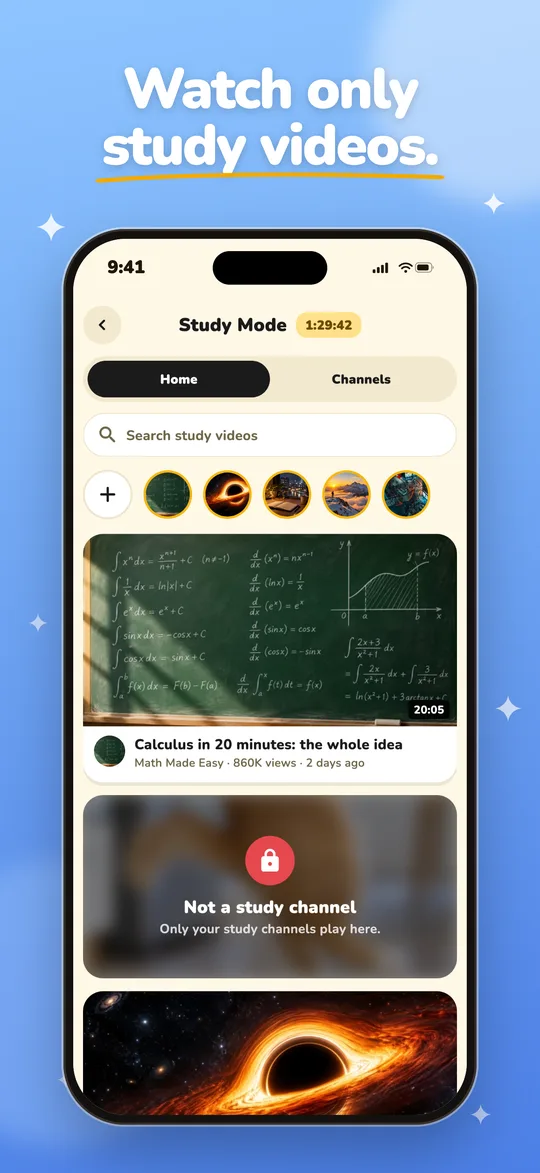 YouTube study mode in BlockGain: your study channels play, everything else waits.
We go into more detail in how to block YouTube but keep it for lectures.
Make study time automatic
Your Study Focus has a schedule. Your blocks can have one too.
In BlockGain Pro, schedules block your chosen apps at set times, like a study time preset on weekdays. You can pause a schedule for a few days or delete it. A strict schedule can't be turned off while it's running.
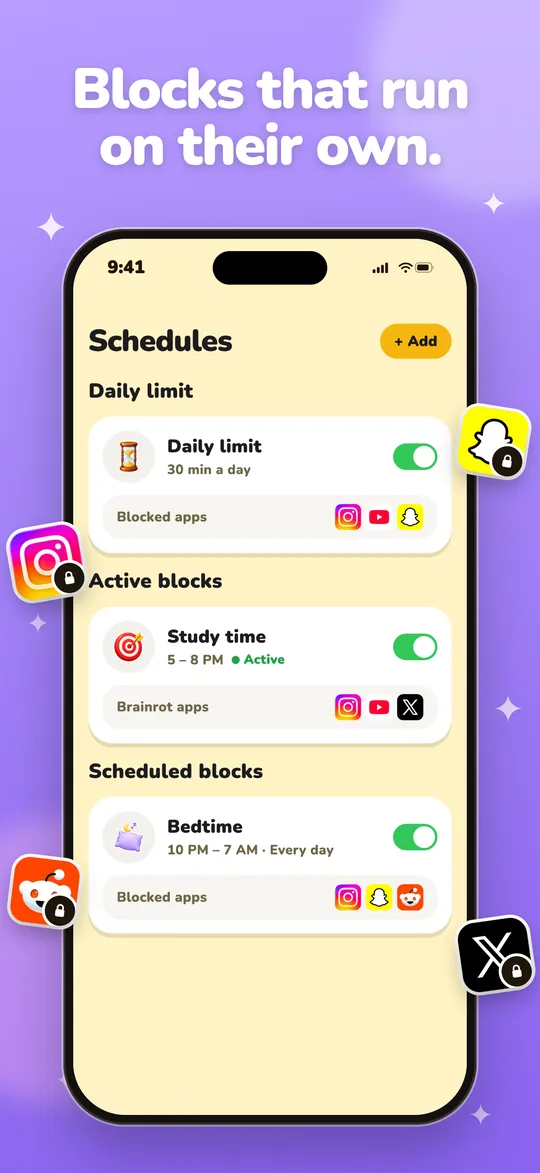 Schedules in BlockGain: daily limit, study time and bedtime.
Match the times to your Study Focus. Then 4 pm means the phone goes quiet and the apps go shut, with no decision to make.
On the free plan, a daily limit for up to 3 apps also helps. After your minutes are used, the app stays blocked until midnight. For exam weeks, see our exam season phone plan.
Where to keep the phone
Even a quiet, locked phone pulls at you if it sits by your hand. Face down, across the room or in a bag is better.
If you need it nearby for the timer or a lecture, that's fine. Our guide on how to study with your phone in the room has a simple desk setup.
What we'd do, step by step
- Create a Study Focus in Settings → Focus → + → Custom.
- Allow only family and the apps you study with.
- Pick a study Home Screen page and a plain Lock Screen.
- Add a schedule for your usual study hours.
- Install BlockGain, connect Screen Time and choose the apps to block.
- Start a focus timer when you sit down, or a Pomodoro and YouTube study mode for lectures (Pro).
- Match a BlockGain schedule to your Study Focus so both start together (Pro).
Pro is $19.99 a year with a 7-day free trial, $4.99 a month, or $39.99 once for lifetime. The plain focus timer and the daily limit are free.
Give it a week. Your phone will start to feel like a study tool, not a pocket of distractions.
Sources
- Apple Support: Set up a Focus on iPhone
- Apple Support: Allow or silence notifications for a Focus on iPhone
- Apple Support: Turn a Focus on or off on iPhone
Common questions
Does iPhone have a study mode?
Not by that name. You can create a custom Focus called Study in Settings → Focus, which silences notifications and can show a quieter Home Screen. It doesn't block apps, so pair it with an app blocker like BlockGain.
Does a Study Focus block apps?
No. A Focus silences notifications and can hide Home Screen pages, but every app still opens if you search for it. To stop the app itself opening, block it with Screen Time or BlockGain.
Can I schedule my Study Focus?
Yes. In the Focus settings, tap Add Schedule and pick a time, a place or an app. BlockGain Pro schedules can block your apps at the same times, for example weekday study hours.
Can I still watch lectures on YouTube while studying?
Yes, with BlockGain's YouTube study mode (Pro). Add YouTube to your blocked apps, mark your study channels, and during focus only those channels play.
Is BlockGain free for studying?
The focus timer, stop screens and a daily limit for up to 3 apps are free. Pomodoro, schedules, strict mode, website blocking and YouTube study mode are Pro, with a 7-day free trial on the yearly plan.
We build BlockGain, the screen time app for iPhone that blocks the apps that eat your day, with a breathing pause and a few minutes when you really need one. We write about focus, phone habits and getting your time back.