To block YouTube but keep it for lectures, block the full YouTube app and use BlockGain's YouTube study mode. Mark your study channels once; while you focus, only those play, and Shorts, recommendations and other channels are sent back.
The short version:
- Blocking all of YouTube also blocks your lectures.
- Leaving it open invites the recommendation rabbit hole.
- Study mode: only your study channels play while you focus.
- Search still works, but only study channels' videos play.
- Outside study time, Minimal gives you YouTube without Shorts.
The problem with all-or-nothing
A lecture video is two taps away from Shorts and recommendations. Block YouTube and you lose the lecture; leave it open and the lecture is often where the scroll starts.
Apple's Screen Time can limit whole apps and websites. It can't tell a physics lecture from a funny video, so it's YouTube or nothing.
That's the gap we built YouTube study mode in BlockGain to fill. You keep the channels you learn from and lose everything around them.
How the options compare
Here's what each setup lets through during a study session.
| YouTube app | Screen Time block | BlockGain study mode | |
|---|---|---|---|
| Your lecture channels | Yes | No | Yes |
| Shorts | Yes | No | No |
| Recommendations | Yes | No | No |
| Other channels | Yes | No | After the session |
| Search | Yes | No | Yes, study channels play |
Step 1: block the full YouTube app
Add YouTube to your blocked apps in BlockGain. BlockGain uses Apple's Screen Time, so the block holds even when BlockGain is closed.
If you open the full app out of habit, you see a stop screen instead. The block screens rotate, with tips, study findings, quotes and a bit of tough love.
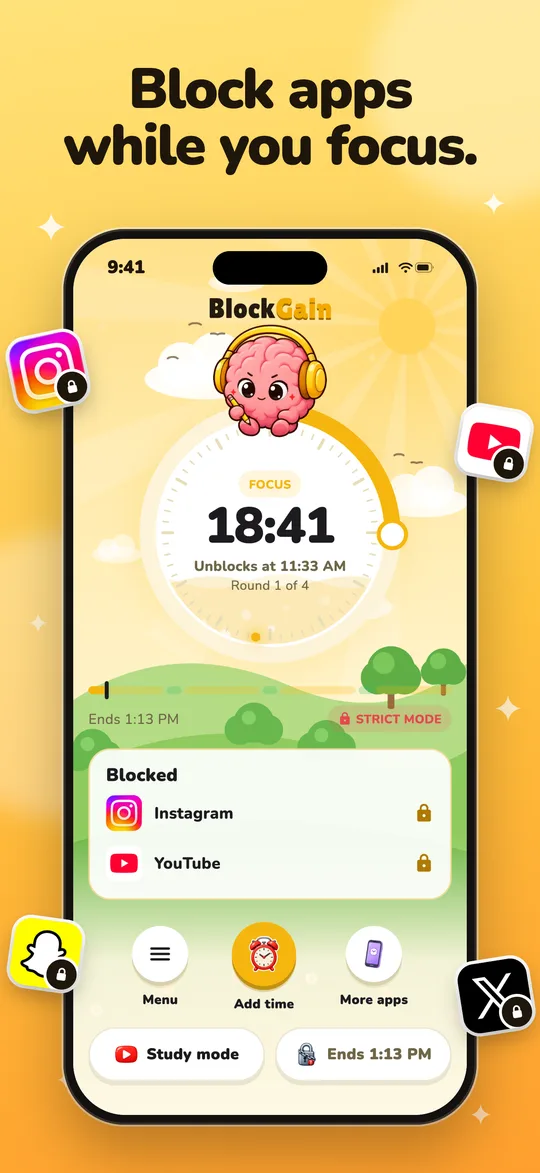 Add YouTube to your blocked apps, then open it from BlockGain instead.
Step 2: mark your study channels
Open Study channels in BlockGain and add the channels you learn from. You only do this once.
Think about what you actually use: your course's channel, a maths tutor, a language teacher. Add as many as you like.
Step 3: turn on study mode for focus time
Turn on YouTube study mode for your focus sessions or a study schedule. During the session, open YouTube from BlockGain.
Only your study channels play. Anything else, Shorts included, is sent back. Search still shows any video, but only study channels' videos play, so you can still find the lecture you need.
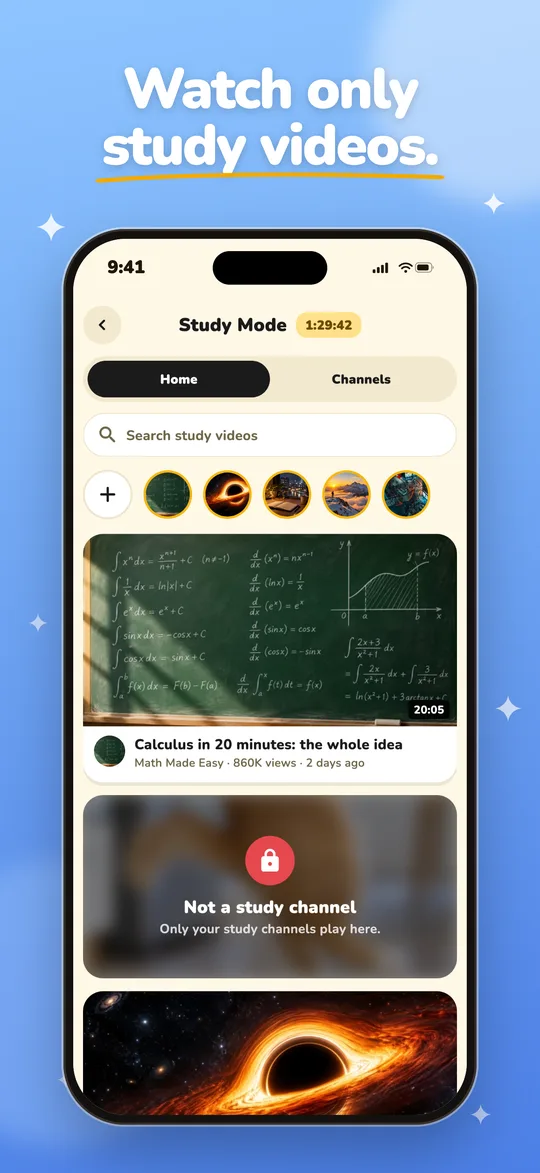 In study mode only your study channels play. Anything else shows "Not a study channel".
Adding a channel mid-session
Found a great new lecture during a session? A channel that clearly teaches (its name says lectures, physics, academy…) can join right away.
Anything else waits until the session ends, so a fun channel can't sneak in. "It's educational" is easy to say in the moment, and the wait takes that excuse away.
Pair it with a focus timer
Study mode works during a focus session. The focus timer (free) lets you pick how long, and the apps you chose stay locked until it ends.
The countdown shows as a Live Activity on the Lock Screen and in the Dynamic Island. You can leave the phone face down and still see how long is left.
If you like rounds with breaks, Pomodoro (Pro) runs them for you, with "Focusing" or "Break time" on the Lock Screen. Our guide to Pomodoro for students has round lengths that suit lectures.
Make it automatic with a schedule
If you watch lectures at set times, a schedule saves you starting a session each time. BlockGain's Study time preset (Pro) locks your chosen apps on the days and hours you pick.
During revision weeks, the Exam season preset sets up a study block you can adjust. See our exam season phone plan for a full day.
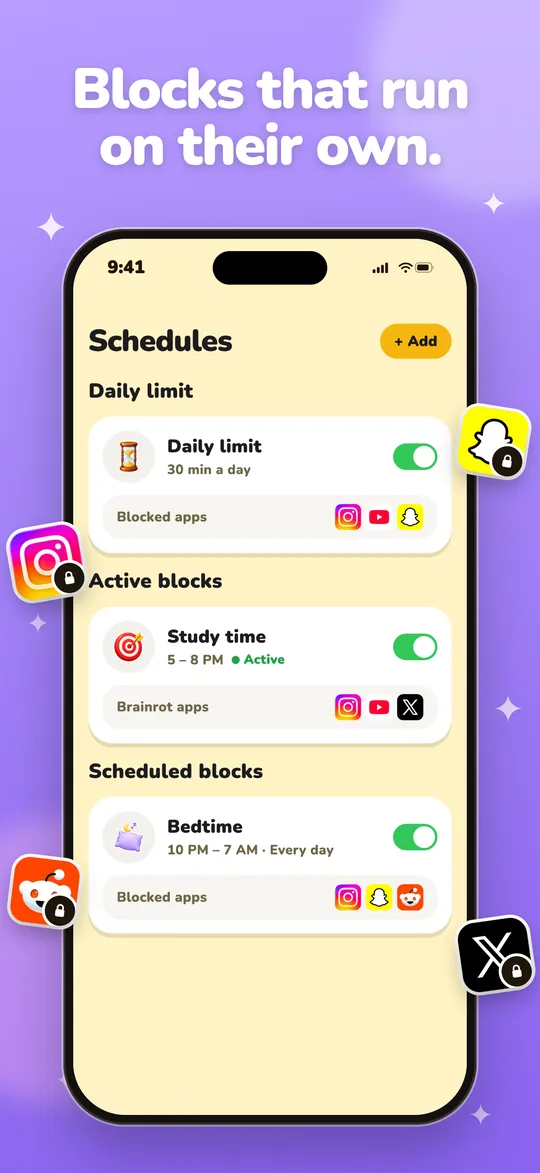 Schedules in BlockGain, with presets like Study time and Exam season.
Outside study time: YouTube without Shorts
Study mode is for focus time. The rest of the day, you might still want YouTube for music, news or a hobby.
Minimal (Pro) opens YouTube without Shorts or the endless feed. Search, subscriptions and the videos you open still work. Read how to watch YouTube without Shorts for the setup.
If you just need the full app for a moment, the daily limit (free, up to 3 apps) helps. Tap Ask my inner self, open the notification, take two slow breaths, and pick 5, 10 or 15 minutes. It locks again by itself.
Common mistakes
Marking fun channels as study channels. It's tempting to add a channel you enjoy "because it's sort of educational". Keep the list to what you'd show your teacher.
Leaving the full app unblocked. If the YouTube app is one tap away, study mode is easy to skip. Block it, and open YouTube from BlockGain.
Studying without a session. Study mode needs a focus session or schedule running. Start the timer first, then open your lecture.
What we'd do, step by step
- Install BlockGain and connect Screen Time.
- Block the YouTube app in your blocked apps.
- Add your study channels once.
- Start a focus session and open YouTube from BlockGain.
- Add a Study time schedule if you watch lectures at set times.
- Use Minimal for YouTube outside study time.
You keep the lectures. The rabbit hole stays closed until you're done.
Sources
Common questions
Can I search YouTube in study mode?
Yes. Any video can show up in search, but only your study channels' videos play.
Does it work outside focus sessions?
Study mode is for focus time. Outside it, use Minimal for YouTube without Shorts or the endless feed.
Can I add a new channel during a session?
A channel that clearly teaches, with a name that says lectures, academy or physics, can join right away. Others wait until the session ends.
Is study mode free?
It is part of BlockGain Pro, with a 7-day free trial on the yearly plan.
How many study channels can I add?
As many as you like.
We build BlockGain, the screen time app for iPhone that blocks the apps that eat your day, with a breathing pause and a few minutes when you really need one. We write about focus, phone habits and getting your time back.