You can't block only Shorts with iPhone's Screen Time; it blocks the whole YouTube app. To block YouTube Shorts on iPhone and keep the rest, use BlockGain: block the full YouTube app, and watch through Minimal, which opens YouTube with Shorts switched off.
The short version:
- Screen Time blocks apps and websites, not parts of them, so it can't remove only Shorts.
- Block the YouTube app in BlockGain so the Shorts version is out of reach.
- Use Minimal for the YouTube you want: search, subscriptions and videos, no Shorts.
- Close Safari's back door by blocking youtube.com during your blocks.
Why you can't just block Shorts
Shorts live inside the YouTube app, behind the same icon as the lectures and channels you actually want. iPhone's Screen Time works at the level of whole apps and websites: it can limit YouTube, but it has no way to reach inside it and switch off one tab.
We ran into the same wall when we built BlockGain. Apple's Screen Time tools, which BlockGain is built on, can stop an app from opening. They can't change what the app shows. That's why we built Minimal as a separate, Shorts-free way into YouTube.
| What you want | Screen Time | BlockGain |
|---|---|---|
| Block the whole YouTube app | Yes, until you ignore the limit | Yes, a real stop screen |
| Block only Shorts | No | Yes, through Minimal |
| Keep subscriptions and search | Only if YouTube is open | Yes, in Minimal |
| Only study channels during focus | No | Yes, study mode |
Step 1: block the full YouTube app
Open BlockGain and add YouTube to your blocked apps. The daily limit is free for up to three apps.
When you open YouTube now, a calm stop screen shows instead of the feed. If you genuinely need the full app, tap "Ask my inner self", take two slow breaths, and unblock it for 5, 10 or 15 minutes; it locks again by itself. We explain the thinking in why a short unblock beats a hard block.
Step 2: watch YouTube in Minimal
Open YouTube from Minimal inside BlockGain. The Shorts tab and the Shorts shelf are gone, and in Clean and Zen styles the endless home feed is off too.
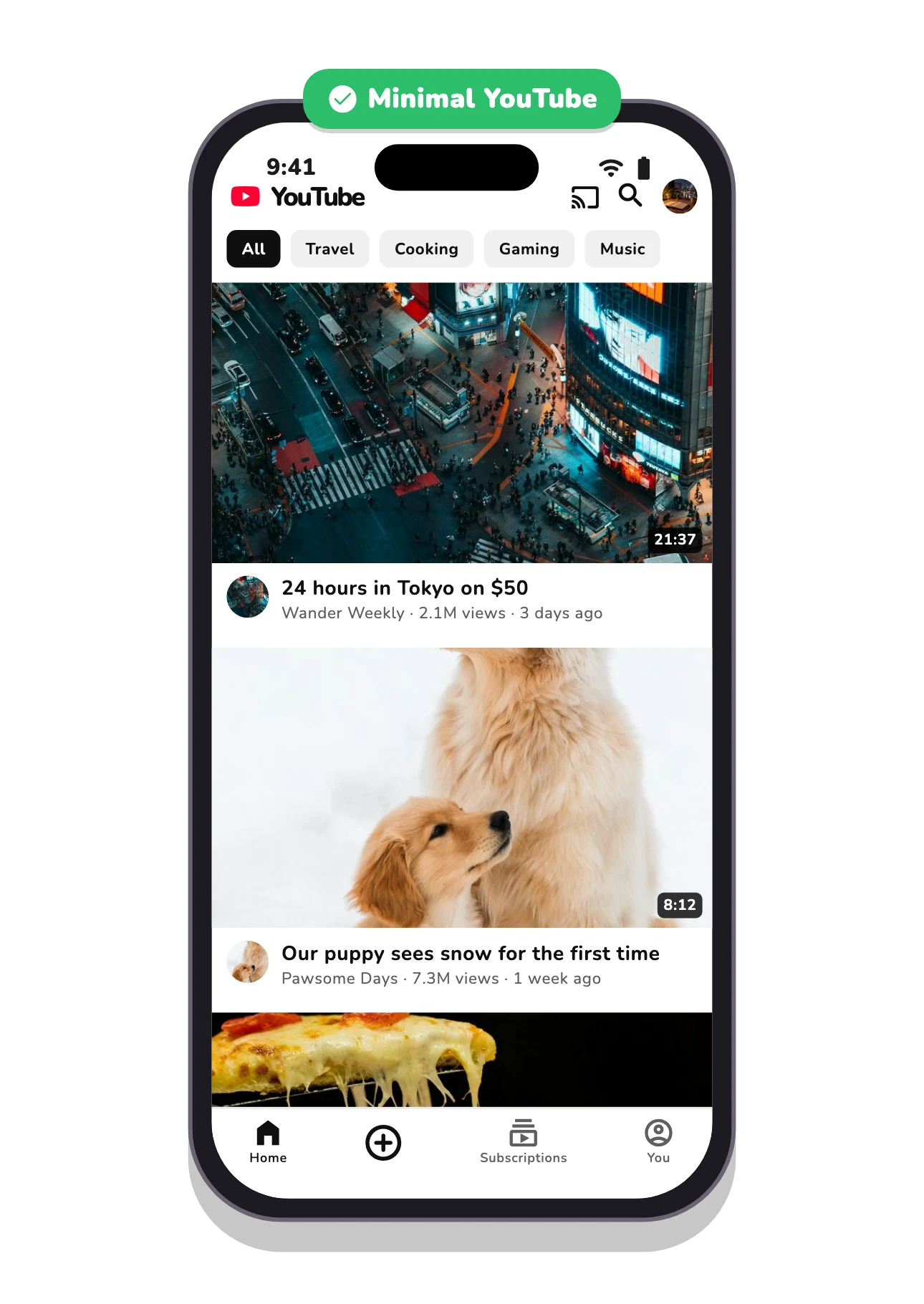 YouTube in Minimal: no Shorts shelf, no Shorts tab.
Sign in on YouTube's own page if you want your subscriptions. BlockGain never sees your password.
Step 3: close the Safari back door
Blocking the app can push the habit into Safari, because Shorts are on youtube.com too. In BlockGain Pro, add the site to your blocked websites so it closes during your blocks, together with the app. We cover this in more detail in how to block websites on iPhone.
Step 4 (students): only your study channels
If YouTube is mostly for class, YouTube study mode goes one step further: during a focus session, only the channels you marked as study channels play. Shorts, recommendations and other channels are sent back until the session ends.
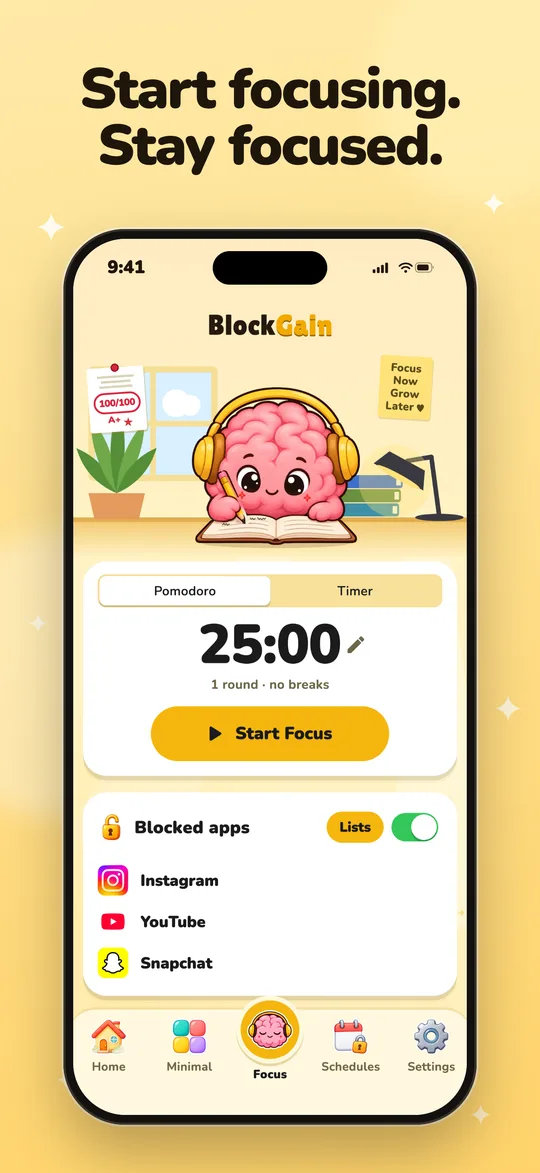 During a focus session, only your study channels play.
Why not just delete YouTube?
Deleting the app feels decisive, and for a day or two it works. Then a friend sends a video, a teacher shares a lecture, or you want a tutorial for something you're fixing. You reinstall YouTube, and Shorts come straight back with it.
Blocking is easier to live with. Your subscriptions, history and saved videos stay where they are, and you keep a clean, Shorts-free way to watch what you need. If you change your mind, you change a setting rather than starting over.
What we learned building Minimal
When we tested early versions of Minimal, hiding the Shorts tab alone wasn't enough: the Shorts shelf on the home page pulled people back in within minutes. Removing both, and switching off the endless home feed in Clean and Zen, is what made the difference.
We also found that people stuck with it far longer when the full app was still reachable for a few minutes when they really needed it. A block you can live with beats a perfect block you switch off by Friday.
What changes after a week
The first few days, your thumb still reaches for the Shorts tab. It isn't there, so the habit has nothing to land on. Most people find that by the end of the first week they open YouTube for one video and close it again, which is the whole point.
If you do slip, the daily limit makes it a small slip: a few minutes, then it locks again. That's a very different evening from an hour of Shorts.
Common mistakes
Blocking YouTube with no way in. You'll turn the block off the first time a friend sends a video. Keep the daily limit's short unblock.
Forgetting the web. If youtube.com stays open, the scroll just moves to Safari.
Changing too much at once. Start with YouTube alone. Once that sticks, add Instagram Reels the same way; see Instagram without Reels on iPhone.
Expecting it to feel normal on day one. The first evenings feel odd: you'll open the Shorts tab out of habit and find nothing there. That moment is the habit breaking, not the setup failing. Give it a full week before you judge it, and look at your Screen Time at the end of it.
Sources
- Apple Support: Set up Screen Time for yourself on iPhone
- Apple Support: Set Screen Time schedules and time allowances on iPhone
Common questions
Can I block only YouTube Shorts on iPhone?
Not with Screen Time, which blocks whole apps and websites. BlockGain's Minimal opens YouTube with Shorts removed, and you block the full app so only the Shorts-free version is left.
Will blocking the YouTube app block my subscriptions too?
In the full app, yes. In Minimal, your subscriptions, search and the videos you open still work.
Does this work on iPad?
BlockGain is built for iPhone. The same idea applies on any device, block the full app and use a Shorts-free view.
How do I stop Shorts in Safari?
Add youtube.com to your blocked websites in BlockGain Pro during your blocks, and use Minimal for the YouTube you need.
We build BlockGain, the screen time app for iPhone that blocks the apps that eat your day, with a breathing pause and a few minutes when you really need one. We write about focus, phone habits and getting your time back.