The iPhone has no built-in Pomodoro mode, but you can run one free with the Clock timer, a Shortcuts shortcut, StandBy, or an app. BlockGain's free focus timer also blocks distracting apps until each round ends.
The short version:
- Clock app Timer: free and simple, but you restart it by hand every round.
- Shortcuts: one tap starts a 25-minute timer and a Focus, but it won't run the breaks.
- StandBy: turns a charging iPhone into a desk clock that shows Live Activities.
- A dedicated app: can run rounds and breaks by itself.
- A timer alone doesn't stop the scroll. Pair it with blocking. BlockGain's free timer blocks apps for each round you start; automatic Pomodoro rounds are Pro.
What a Pomodoro timer on iPhone needs to do
If you're new to the method, our guide to Pomodoro for students covers the technique itself: round lengths, what to do in breaks, and how many rounds a day. This post is just about the timer.
A good Pomodoro timer does three things. It counts down a focus round. It starts the break when the round ends. And it lets you see the time left without opening the phone.
Most free options do the first one well. Few do all three.
Every free option, compared
Here's how the free ways to run a Pomodoro on iPhone stack up. We checked each Apple feature against Apple's own support guides, linked at the end.
| Option | Runs rounds and breaks? | See time without unlocking? | Blocks distracting apps? |
|---|---|---|---|
| Clock app Timer | No, by hand | When it ends, yes | No |
| Shortcuts shortcut | No, one round per tap | When it ends, yes | No, Focus only hides notifications |
| StandBy while charging | Shows a timer, doesn't run one | Yes, full screen | No |
| Widgets | Depends on the app | Yes, at a glance | No |
| BlockGain focus timer (free) | No, one block per start | Yes, Live Activity | Yes, until it ends |
| BlockGain Pomodoro mode (Pro) | Yes, rounds and breaks | Yes, Live Activity | Yes, during rounds |
Option 1: the Clock app Timer
The simplest Pomodoro timer on iPhone is already installed. Open Clock → Timers, set 25 minutes, and tap Start.
Under When Timer Ends, you can pick the sound. You can also run more than one timer at once, or reuse a recent one, so 25 and 5 minutes are a tap away.
When the timer ends, an alert shows on the Lock Screen with Repeat and Stop. You can also ask Siri: "Set a timer for 25 minutes."
The catch is that it's all manual. After each round you start the break, then the next round, then remember which round you're on. That's a lot of unlocking, and every unlock is a chance to open something else.
Option 2: a Pomodoro shortcut
If you search "pomodoro timer iphone shortcut", this is what people mean. In the Shortcuts app, tap Add, then add actions to a new shortcut.
A simple version:
- Add Set Focus and pick a Focus, like Work or Study.
- Add the Clock's Start Timer action and set it to 25 minutes.
- Name it "Pomodoro" and tap Done.
Now one tap, or a "Hey Siri, Pomodoro", starts the round. Put the shortcut on your Home Screen for quick access.
It's tidy, but it's still one round per tap. The shortcut doesn't wait for the timer, run a break, and loop. And a Focus hides notifications; it doesn't stop you opening an app yourself.
Option 3: StandBy on your desk
Searches for "pomodoro timer iphone standby" make sense. StandBy turns your iPhone into a bedside or desk display.
Connect the iPhone to a charger and set it down on its side, keeping it still, while it's on the Lock Screen. Apple says StandBy can show widgets or Live Activities in full screen.
So if your timer shows a Live Activity, you can read the countdown from across the desk without touching the phone. That's the best part: the phone stays locked and out of reach.
StandBy doesn't run the timer, though. It shows one that something else started.
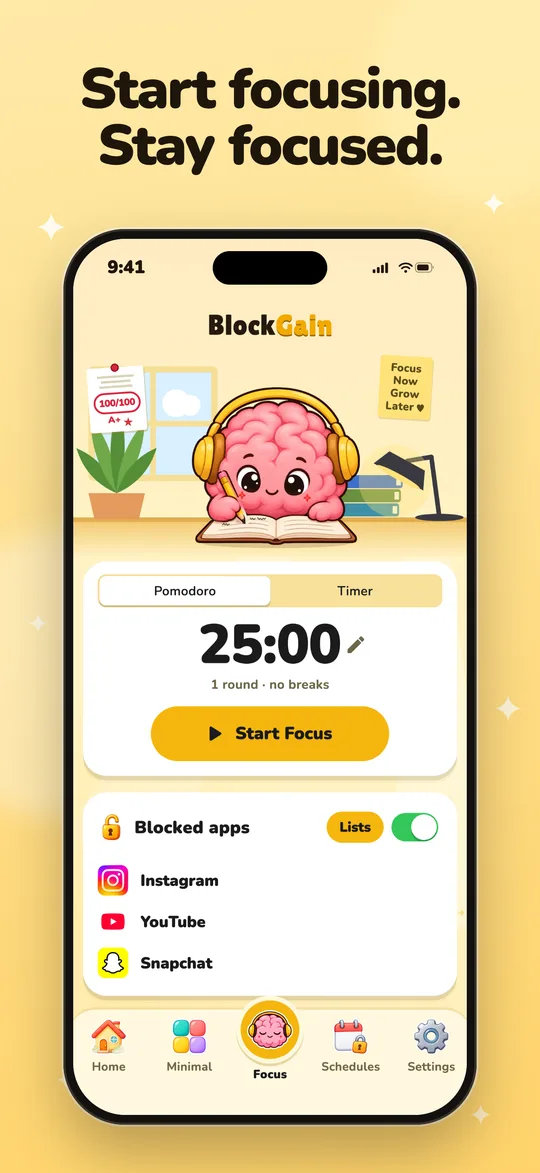 In BlockGain, set 25 minutes on the Timer tab and tap Start Focus. The Pomodoro tab is Pro.
Option 4: Lock Screen, Live Activities and widgets
Apple describes widgets as a way to see current information from an app at a glance, on the Home Screen or the Lock Screen. A "pomodoro timer widget iphone" search mostly turns up third-party apps that offer one.
Live Activities go a step further: a live countdown on the Lock Screen and, on iPhones that have it, in the Dynamic Island. We wrote about why that matters in your focus timer in the Dynamic Island. In short, checking the time without unlocking cuts out the moment the scroll usually starts.
Why a timer alone isn't enough
Here's the honest problem with every option above. A timer tells you when to stop. It does nothing to stop you opening Instagram at minute 7.
A Focus helps a little, because it hides notifications. But the apps are still one tap away, and the urge usually comes from you, not from a buzz. If that sounds familiar, our post on studying with your phone in the room is worth a read.
That's why we built BlockGain's focus timer to block apps during the round, not just count it down.
Option 5: BlockGain's focus timer
In BlockGain, the free focus timer runs one focus block. Set 25 minutes on the Timer tab and tap Start Focus. Until it ends, the apps you picked are blocked through Apple's Screen Time. Open one and you get a stop screen instead.
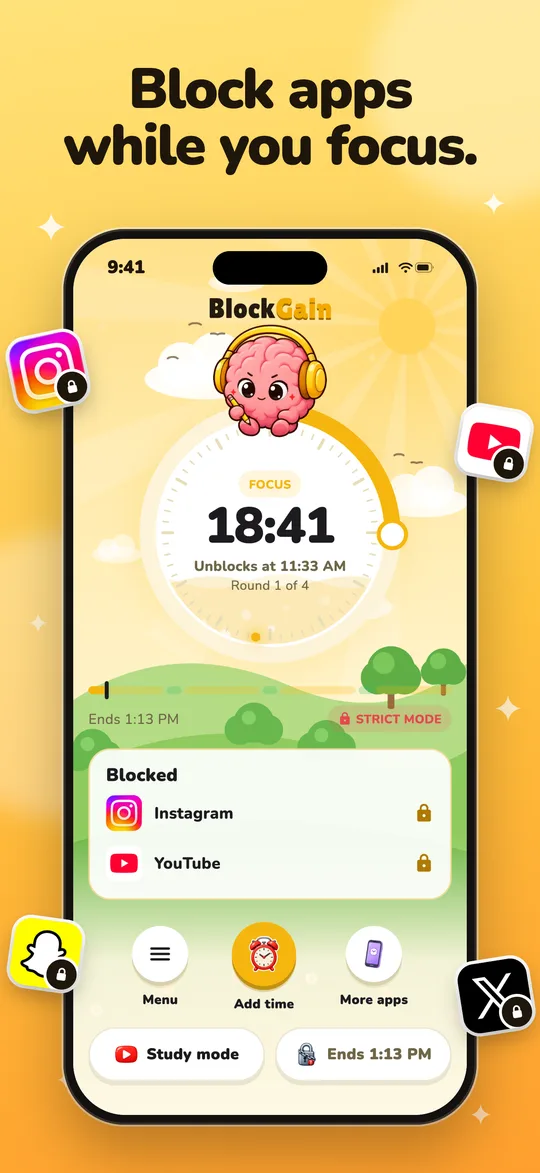 A focus block in BlockGain: apps blocked until the timer ends.
To run Pomodoros for free, treat each block as one round. When it ends, take your 5-minute break, then start a new 25-minute timer. It's manual, like the Clock app, but your apps stay blocked while you work.
The countdown runs as a Live Activity on the Lock Screen and in the Dynamic Island. Put the phone in StandBy and you get a desk clock for your round. Add time gives you a few more minutes if the task needs them.
If you need out, Leave early takes a 5-second hold, enough to make you think twice.
BlockGain Pro: automatic Pomodoro rounds
If you'd rather not restart the timer each round, the Pomodoro tab (Pro) runs the whole cycle. You set the number of rounds, the short break minutes and a long break.
The screen shows where you are, like "Round 2 of 4" and "Next: round 3". Apps are blocked during rounds and free during breaks. You can Skip break if you're in the flow.
For exam weeks, strict mode (Pro) removes the way out of a session. See strict mode, explained. Pro is $19.99 a year with a 7-day free trial, $4.99 a month, or $39.99 once for lifetime.
BlockGain has no account and no ads, and your data stays on the phone.
Which one should you use?
- You just want a countdown: the Clock app Timer is fine.
- You want one-tap starts: build the shortcut.
- You study at a desk: add StandBy, so the countdown stays visible.
- You keep picking up the phone mid-round: use a timer that blocks apps. BlockGain's is free.
- You want rounds and breaks on autopilot: BlockGain's Pomodoro mode (Pro).
What we'd do, step by step
- Install BlockGain and connect Screen Time.
- Pick the apps that pull you away. You'll block them while you focus.
- Open the focus timer, set 25 minutes on the Timer tab, and tap Start Focus.
- Put the phone on its charger on its side for StandBy, and watch the countdown from your desk.
- Take a real 5-minute break away from the screen, then start the next round.
- Want it automatic? Try Pomodoro mode with the 7-day free trial.
Try it for one study session. If the rounds hold, add another tomorrow.
Sources
- Apple Support: Set timers in Clock on iPhone
- Apple Support: Create a custom shortcut on iPhone or iPad
- Apple Support: Use StandBy on iPhone
- Apple Support: Add, edit, and remove widgets on iPhone
- Apple Support: Set up a Focus on iPhone
Common questions
Does iPhone have a built-in Pomodoro timer?
No. The Clock app has a Timer you can set to 25 minutes, but it doesn't run rounds or breaks for you. You restart it by hand after each round.
Can I make a Pomodoro shortcut on iPhone?
Yes. In the Shortcuts app, add the Clock's Start Timer action set to 25 minutes, and optionally a Set Focus action. It starts one round per tap; it doesn't loop through breaks.
Does a Pomodoro timer show in StandBy?
StandBy can show widgets and Live Activities full screen while your iPhone charges on its side. If your timer shows a Live Activity, like BlockGain's focus countdown, you can see it from across the desk.
Is there a free Pomodoro app for iPhone that blocks apps?
BlockGain's free focus timer blocks your chosen apps for one focus block, using Apple's Screen Time. To run Pomodoros free, start a new 25-minute timer each round. Automatic rounds with short and long breaks are part of BlockGain Pro, with a 7-day free trial on the yearly plan.
Can I stop a focus session early in BlockGain?
Yes, tap Leave early and hold for 5 seconds. With strict mode (Pro), there's no leaving early until the session ends.
We build BlockGain, the screen time app for iPhone that blocks the apps that eat your day, with a breathing pause and a few minutes when you really need one. We write about focus, phone habits and getting your time back.