To lock apps on iPhone, touch and hold the app, then tap Require Face ID. That keeps other people out. If you want to keep yourself out, Face ID won't help; you need a block, like BlockGain or a Screen Time limit.
The short version:
- Require Face ID (iOS 18 and later) locks an app behind Face ID, Touch ID or your passcode.
- Hide moves an app into a locked Hidden folder in App Library.
- Both are for privacy. They stop other people, not you.
- For self-control, block the app instead: Screen Time limits, or BlockGain with a stop screen.
Two different reasons to lock an app
People search "app lock iPhone" for two very different things.
The first is privacy. You hand your phone to a friend or a kid, and you don't want them opening your messages, photos or banking app.
The second is self-control. You want Instagram or TikTok locked so you stop opening it at 1am. We build BlockGain for this second job, and the two are easy to mix up. A Face ID lock feels like it should help, but it doesn't.
Here's how the options compare.
| Stops other people | Stops you | Built in | Cost | |
|---|---|---|---|---|
| Require Face ID | Yes | No, it's your face | Yes, iOS 18+ | Free |
| Hide app | Yes, and hides the icon | No, one tap in App Library | Yes, iOS 18+ | Free |
| Screen Time App Limits | Partly, with a passcode | Until you ignore the limit | Yes | Free |
| BlockGain | Not its job | Yes, a stop screen | No, uses Screen Time | Free for 3 apps; Pro for more |
Lock an app with Face ID (privacy)
Since iOS 18, Apple lets you put Face ID in front of almost any app. Apple's guide to locking or hiding an app gives these steps:
- Touch and hold the app icon on your Home Screen.
- Tap Require Face ID (or Touch ID or Passcode).
- Confirm with Face ID, Touch ID or your passcode.
Now the app asks for your face each time it opens. Apple also says what's inside a locked app won't show in places like notification previews, search and Siri suggestions.
Some apps can't be locked. Apple's Personal Safety guide lists Calculator, Camera, Clock, Contacts, Find My, Maps, Shortcuts and Settings.
To undo it, touch and hold the app again and tap Don't Require Face ID.
Hide an app in the Hidden folder
Hiding goes one step further. It locks the app and takes the icon off your Home Screen.
- Touch and hold the app icon.
- Tap Require Face ID.
- Tap Hide and Require Face ID, confirm, then tap Hide App.
The app moves to the Hidden folder at the bottom of App Library, which needs Face ID to open. Only apps you downloaded can be hidden; apps that came with your iPhone can only be locked.
Hidden isn't invisible. Apple notes the app can still show up in places like Settings, Screen Time and your App Store purchase history.
What about "app lock" apps from the App Store?
Apple's Require Face ID is the built-in way to lock an app on iPhone, and it's the one we'd use. If you find an "app lock" in the App Store, read its description closely and check what it actually locks.
Some are vaults for photos and notes kept inside their own app. Blockers, BlockGain included, use Apple's Screen Time to block apps rather than adding Face ID to them.
Why Face ID doesn't stop you
Here's the catch for the self-control crowd. Face ID checks that the person holding the phone is you. When you reach for TikTok at midnight, it is you.
So the lock opens in a blink. Hiding is the same: the Hidden folder is a swipe and a glance away. Both are great for privacy and do nothing for a habit.
 A lock checks who you are. A block asks if you really need the app right now.
Block apps with Screen Time App Limits
For self-control, the built-in tool is Screen Time. Go to Settings → Screen Time → App Limits, pick the app and a daily time. When it runs out, the app shows a limit screen. Apple's time allowances guide has the full steps.
The weak spot is the passcode. On your own phone, you set it, so you know it. Typing it in to get "15 more minutes" takes two seconds. We wrote about this in why your own Screen Time passcode doesn't stop you.
Block apps with BlockGain (self-control)
BlockGain doesn't add Face ID to apps. It blocks them, using Apple's own Screen Time system. A blocked app shows a stop screen instead of opening, even when BlockGain is closed.
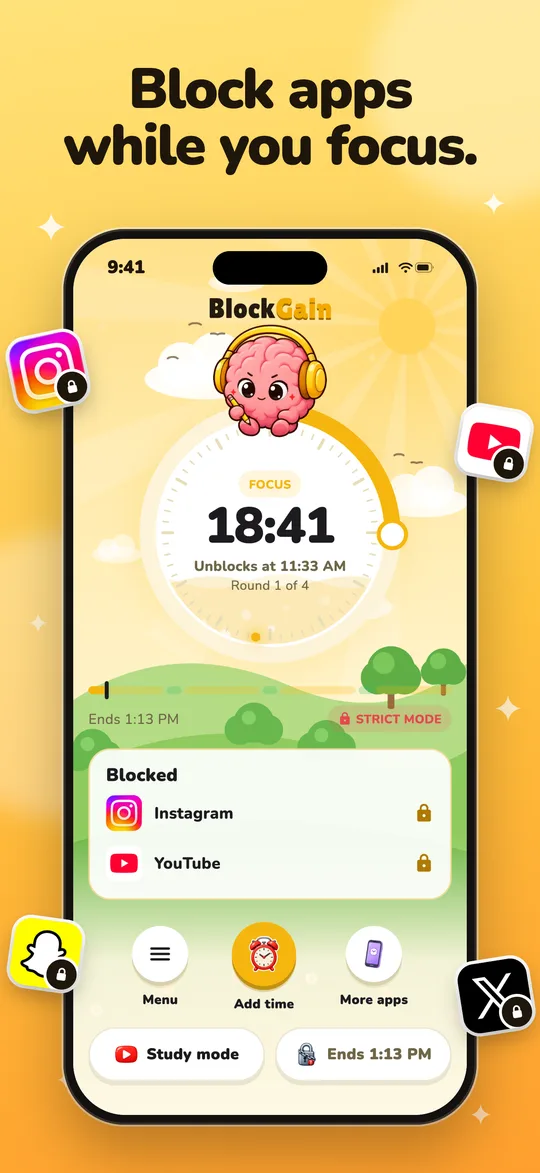 A focus session in BlockGain: blocked apps show a stop screen until it ends.
What's free:
- Daily limit for up to 3 apps. When the time is used, the app stays blocked until midnight.
- Focus timer: one focus block, no breaks. Pomodoro with breaks is part of Pro.
- Stop screens and screen time stats.
When you truly need the app, tap "Ask my inner self" on the stop screen. You get a notification, two slow breaths, then a choice of 5, 10 or 15 minutes. After that, the app locks again by itself.
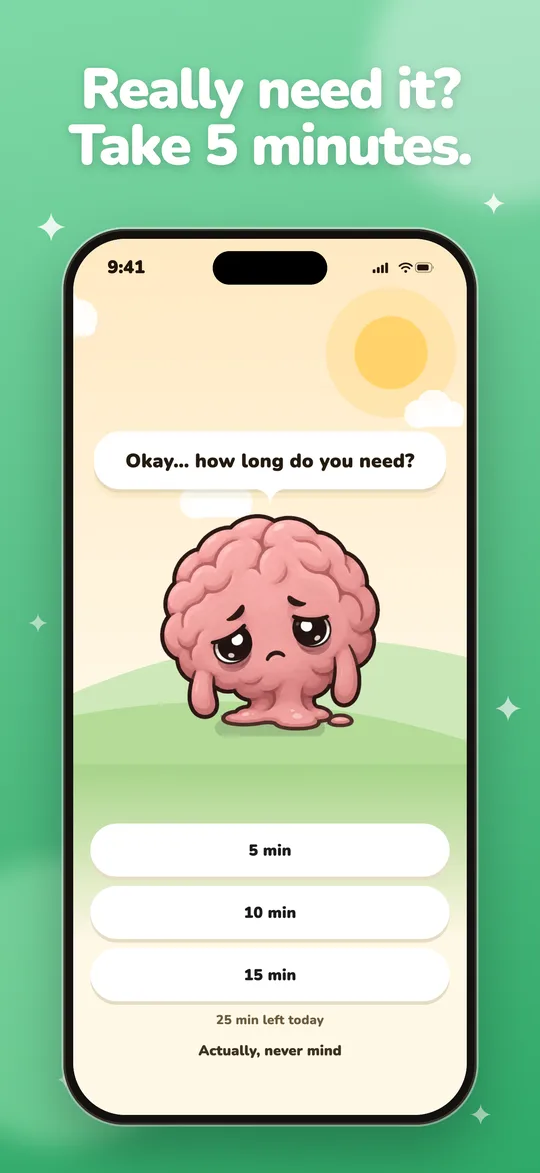 Ask my inner self: two breaths, then 5, 10 or 15 minutes, and it relocks.
That pause is the part a Face ID lock can't give you. Our post on the five-minute unblock explains why it works better than a hard wall.
When you need it to really hold
BlockGain Pro adds the tools for harder weeks:
- Unlimited apps and schedules, so blocks start on their own.
- Pomodoro mode, with breaks between focus blocks.
- Strict mode: a focus session can't be ended early, and a strict schedule can't be switched off while it runs. See strict mode explained.
- Website blocking in Safari, so the habit doesn't move to the browser.
- Prevent uninstall, so deleting BlockGain isn't the escape hatch.
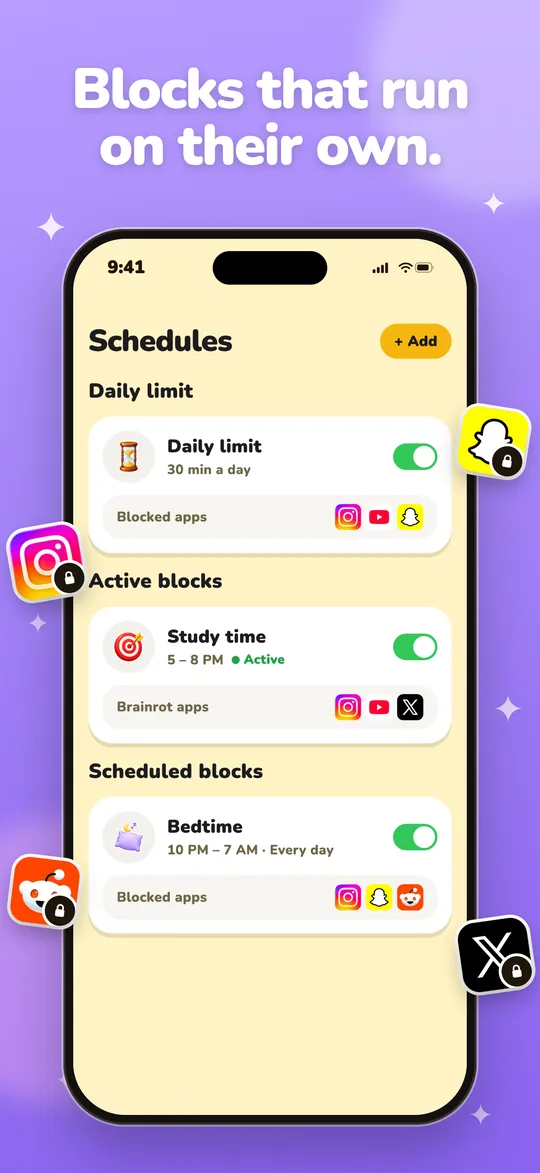 Schedules in BlockGain: set the times once, and blocks start by themselves.
For a wider look at your choices, read how to block apps on iPhone or our pick of the best app blocker for iPhone.
What we'd do, step by step
- For privacy, lock your banking, photos or chat apps with Require Face ID.
- Hide any downloaded app you'd rather nobody sees on your Home Screen.
- For self-control, install BlockGain and connect Screen Time.
- Add up to 3 apps to the free daily limit.
- Use "Ask my inner self" when you really need one, and let it relock.
- Add Pro if you need schedules, strict mode or website blocking.
BlockGain has no account and no ads, and your data stays on your phone. Pro is $19.99 a year with a 7-day free trial, $4.99 a month, or $39.99 once for lifetime.
Use both locks. Face ID keeps others out of your apps, and a block keeps you out of the ones you'd rather skip.
Sources
- Apple Support: Lock or hide an app on iPhone
- Apple Support: Lock or hide apps on your iPhone (Personal Safety Guide)
- Apple Newsroom: iOS 18 is available today
- Apple Support: Set Screen Time schedules and time allowances on iPhone
Common questions
How do I lock an app with Face ID on iPhone?
Touch and hold the app icon, tap Require Face ID (or Touch ID or Passcode), then confirm. This is built into iPhone since iOS 18.
Which apps can't be locked on iPhone?
Apple lists Calculator, Camera, Clock, Contacts, Find My, Maps, Shortcuts and Settings as apps that can't be locked. Apps that came with your iPhone can't be hidden, only locked.
Where do hidden apps go on iPhone?
They leave the Home Screen and move to the Hidden folder at the bottom of App Library, which needs Face ID, Touch ID or your passcode to open.
Will a Face ID lock stop me from scrolling?
No. It checks that you are you, and you always are. To stop yourself opening an app, block it with Screen Time limits or a blocker like BlockGain.
Does BlockGain add Face ID to apps?
No. BlockGain blocks apps through Apple's Screen Time and shows a stop screen. For a privacy lock, use Apple's own Require Face ID.
We build BlockGain, the screen time app for iPhone that blocks the apps that eat your day, with a breathing pause and a few minutes when you really need one. We write about focus, phone habits and getting your time back.