There is no single number that is too much screen time. Ask what it replaces instead. If your phone takes time from sleep, study, people or rest you care about, it's too much for you, and that's the hour to protect.
The short version:
- Look at when, not just how long.
- Protect sleep first: late-night scrolling costs the most.
- Find your top three apps and ask what they replaced.
- Set a daily budget for the apps that take time from things you value.
- BlockGain shows your screen time, pickups and top apps for free, and keeps the apps you choose blocked.
Why a single number doesn't help
Two hours of maps, music and messages is not the same as two hours of Reels at 1 AM. Your Screen Time total mixes them together. A target like "under three hours" treats them as equal, and they aren't.
When we built BlockGain's Home screen, we put screen time, pickups and top apps side by side for that reason. The total on its own tells you very little. Which apps, and at what time of day, tells you almost everything.
A number also invites the wrong kind of guilt. You can hit your target and still lose the evening you wanted, or go over it on a long train ride and feel fine.
The question that works: what did it replace?
Every hour on your phone comes from somewhere. Sometimes it comes from boredom, and that's fine. Sometimes it comes from sleep, from the essay due on Friday, or from the person sitting next to you.
So instead of asking "how much?", ask "instead of what?". If the honest answer is "nothing I'd miss", don't worry about it. If the answer is "sleep" or "the thing I said I'd do today", that's your too much.
 The time isn't the problem. What the time pushed out is.
A five-minute check you can do today
You don't need an app for this first step. iPhone already keeps the numbers for you.
- Open Settings → Screen Time and tap to see all activity.
- Look at your top three apps. Note which ones you'd call useful and which ones you'd call a feed.
- Look at your busiest time. Is it late at night, first thing in the morning, or during study or work?
- Ask what that time replaced. Write one word: sleep, study, people, rest or nothing.
- Pick one hour to protect. Just one, to start.
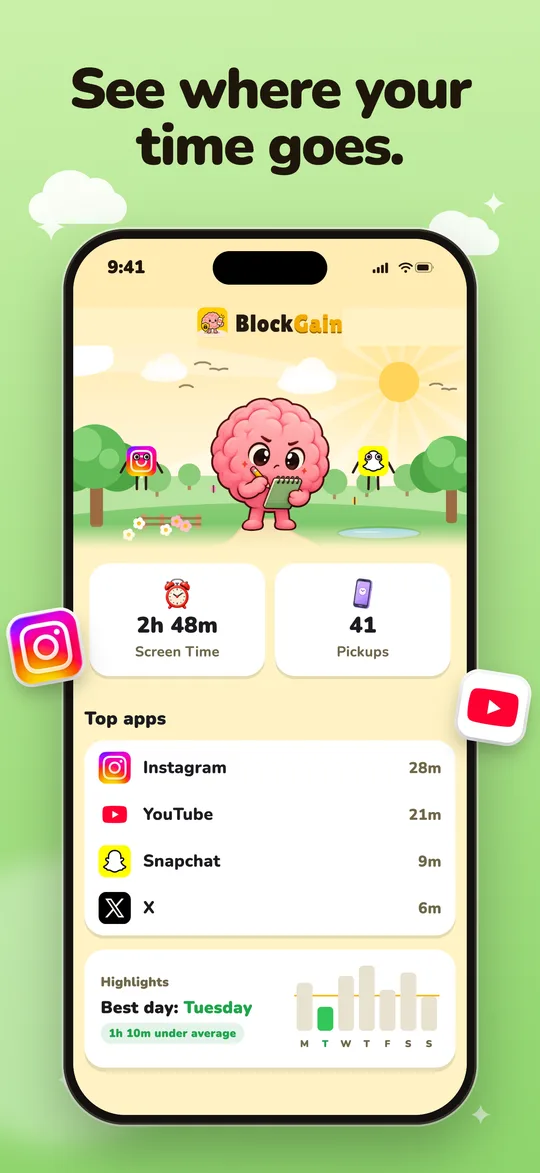 BlockGain shows the same numbers on its home screen: screen time, pickups and your top apps.
Most people find the answer in the busiest hour, not the daily total. A screen time habit is usually one or two moments a day that keep repeating.
Protect sleep first
If your busiest hour is late at night, start there. The Sleep Foundation says screens can delay sleep and recommends avoiding them in the hour before bed.
Night scrolling also has a cost the next morning. You're tired, so the phone is more tempting, so the next night is later again. A bedtime block breaks that loop without needing willpower at midnight.
 The Bedtime preset blocks your chosen apps every night, so the decision is already made.
For a full setup, read how to set a bedtime phone schedule. If the scrolling happens in bed, how to stop doomscrolling on iPhone goes further.
Set your own limit
Once you know what your phone replaces, the fix follows. Match the tool to the thing you want back.
| If your phone replaces… | Try | In BlockGain |
|---|---|---|
| Sleep | A bedtime block, every night | Bedtime preset (Pro) |
| Study or work | A focus timer or strict block | Focus timer (free), Strict mode (Pro) |
| Time with people | A dinner or weekend schedule | Family dinner or Weekend detox presets (Pro) |
| Rest | A daily budget on your feed apps | Daily limit (free for up to 3 apps) |
| Mornings | Feeds blocked until you're up | Morning routine preset (Pro) |
Why Screen Time limits alone often fail
Apple's Screen Time lets you set time allowances for apps. On your own phone, though, you can tap past the limit whenever you want, and after a few days most people do it without thinking.
That's why the daily limit in BlockGain works the other way around. Your chosen apps stay blocked all day. The stop screen has one button, Ask my inner self, which sends you a notification.
Tap it, and BlockGain asks you to take two slow breaths first. If you still badly need the app, it opens for 5, 10 or 15 minutes, then locks again, even while you're still in it.
Each unblock comes out of your daily budget (from 15 to 120 minutes). When it's gone, the apps stay blocked until midnight.
We explain why this holds up better in why a short unblock beats a hard block and why Screen Time limits stop working.
Watch the trend, not the day
One bad day means nothing. A week tells you whether your setup is working.
BlockGain's Home shows your screen time, pickups and top apps for free. With Pro, Highlights add your best day, your busiest hour, late-night scrolling, and today compared with your usual. We checked that each one answers a real question, not just adds a chart.
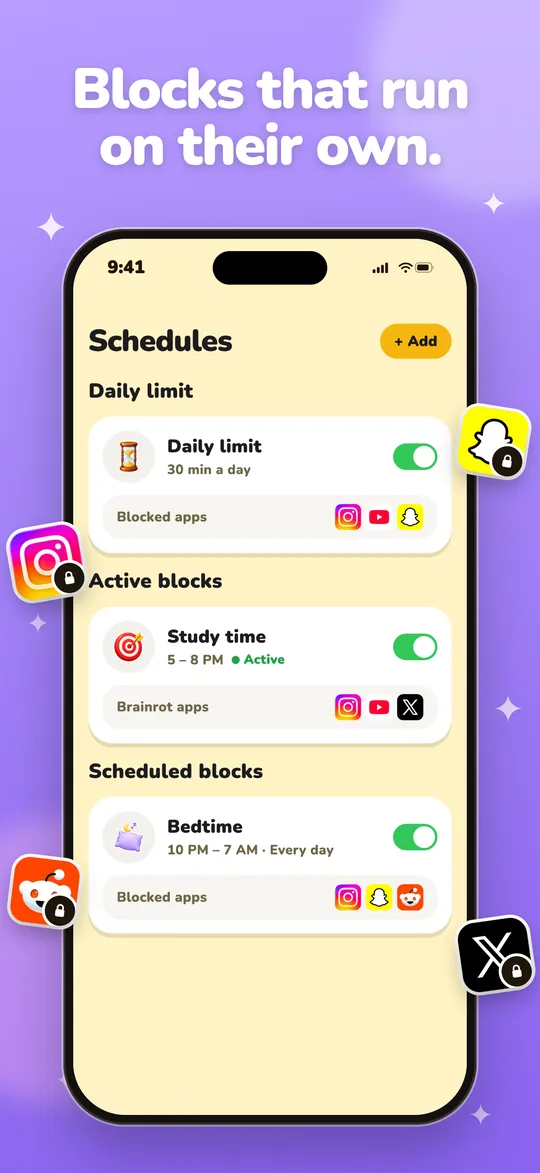 Schedules in BlockGain: pick a preset, then change the times to fit your week.
Your data stays private. Apple keeps screen time data on your iPhone, and BlockGain never sees which apps you use. There's no account and no ads.
What we'd do, step by step
- Do the five-minute check in Settings → Screen Time.
- Name the one thing your phone replaces most.
- Install BlockGain and connect Screen Time.
- Add your top feed apps to the daily limit with a 30-minute budget.
- Add a bedtime block if late nights came up.
- Look again in a week and adjust one thing.
Too much screen time isn't a number you hit. It's the moment you notice your phone took something you wanted to keep. Start by getting that one hour back.
Sources
- Apple Support: Set up Screen Time for yourself on iPhone
- Apple Support: Set Screen Time schedules and time allowances on iPhone
- Sleep Foundation: How does blue light from electronic devices affect sleep?
Common questions
Is there a recommended amount of screen time for adults?
There is no single agreed number for adults. Focus on what your screen time displaces, especially sleep.
Does BlockGain see my screen time?
No. Apple keeps it on your iPhone and only lets the app show it. BlockGain never sees which apps you use.
Are Highlights free?
Screen time, pickups and top apps on Home are free; Highlights are part of BlockGain Pro.
Where do I start?
Pick your worst hour and protect it first. For most people that is bedtime.
Why don't Screen Time limits work for me?
On your own iPhone you can tap past a time allowance whenever you like. A block that stays on, with a small honest way through, holds up better.
We build BlockGain, the screen time app for iPhone that blocks the apps that eat your day, with a breathing pause and a few minutes when you really need one. We write about focus, phone habits and getting your time back.